Review and clinically approve your letter, then export as PDF or Word
After you create a record, you are taken to the letter page to review the output. Follow these steps to review and clinically approve your letter.
1
Letter page
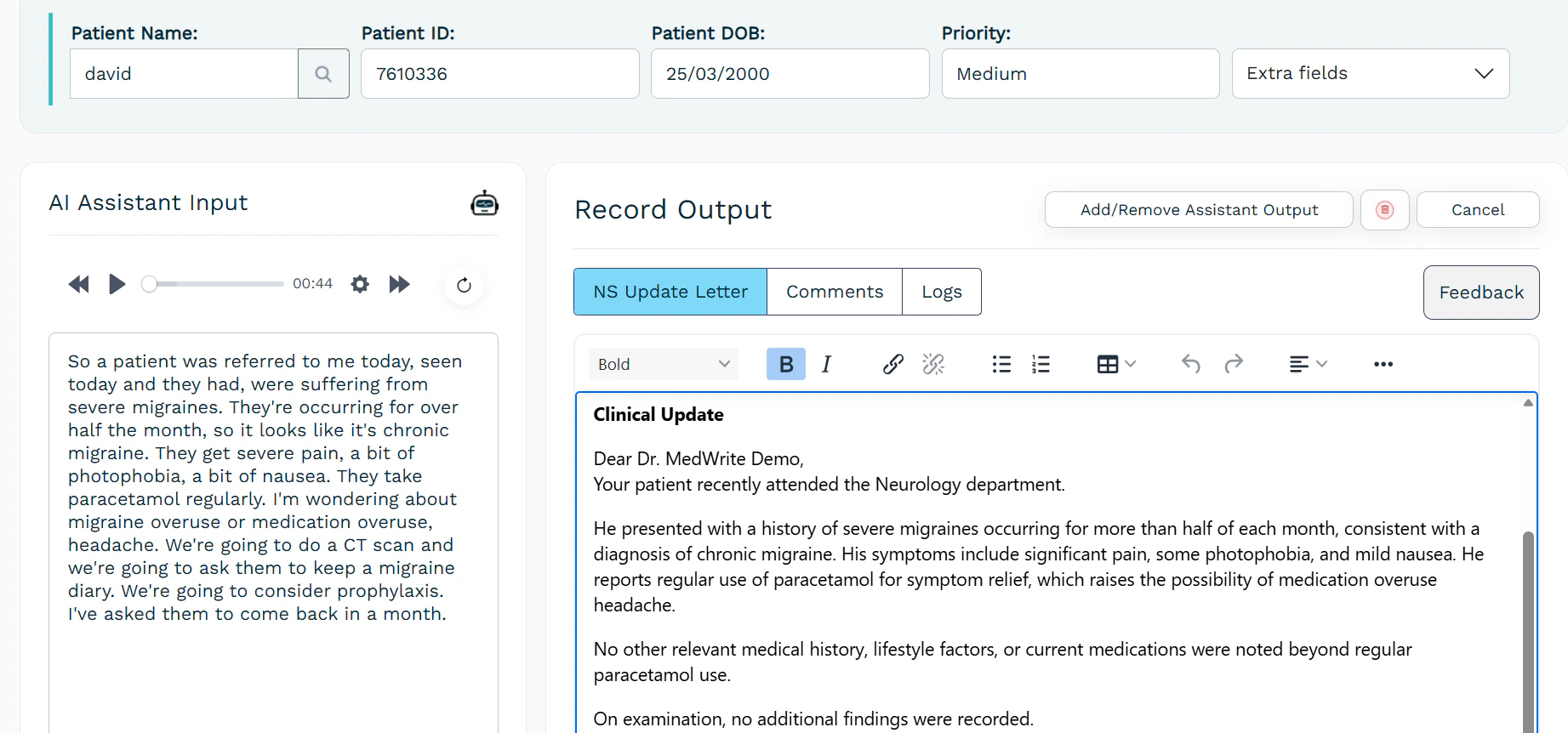
After you create a record you are directed to the letter page. There you can view or edit the letter. The page shows patient details, the record you captured, the transcript of the record, and the Record output (which depends on the assistant you selected).
Letter page with patient details, record, transcript, and Record output.
2
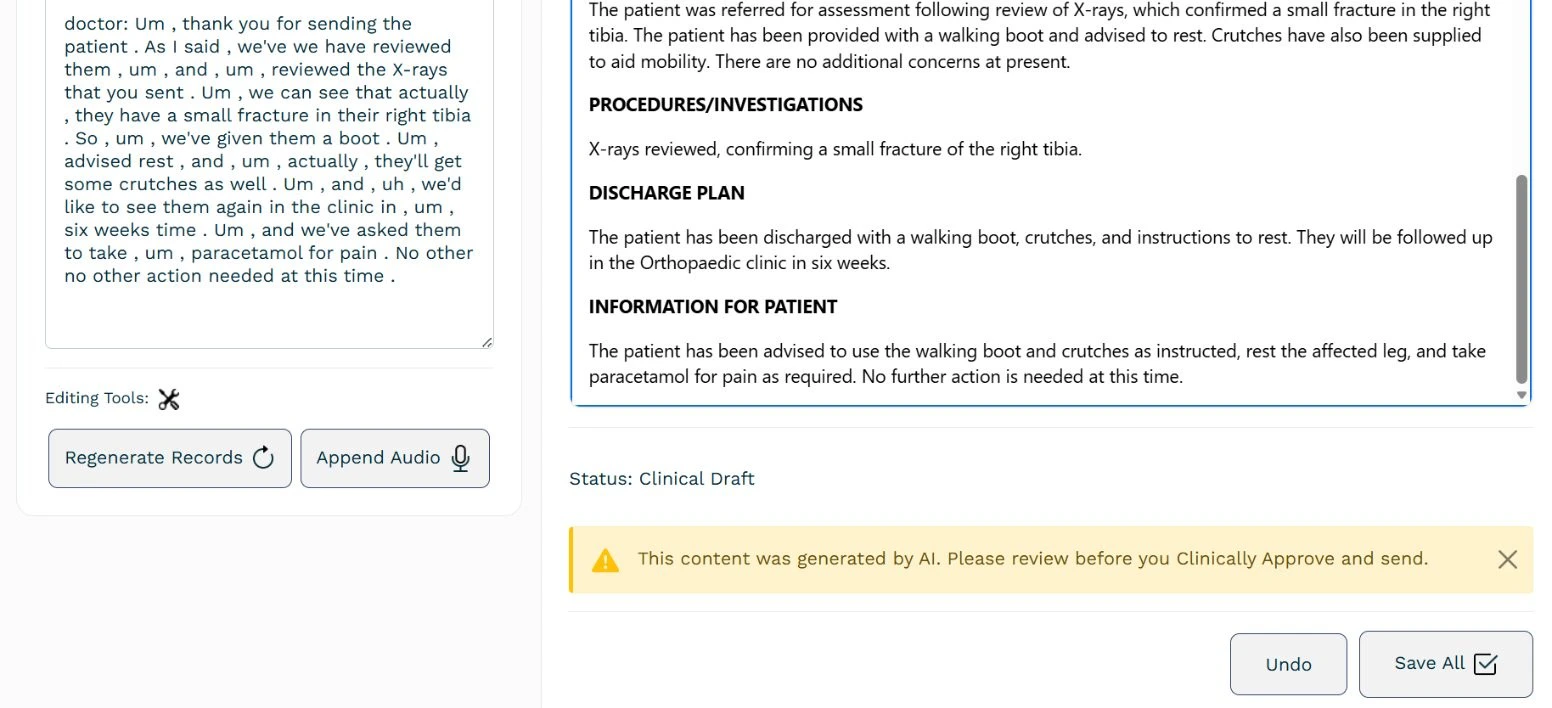
Review the AI-generated content warning
When you create a letter, a reminder appears. It tells you that the content was generated by AI and that you need to review it before use.
Warning that content is AI-generated and must be reviewed.
3
Refine with AI Assist
To adjust the output, press the AI Assist button (magic‑wand icon) in the letter toolbar. You can:
Make it shorter
Make it longer
Or type your own instruction (for example, “use a formal tone”) and press Refine.
AI Assist (magic tool) in the letter toolbar.
Select part of the text first to have the AI focus on that section. Use Undo to revert, and save before you clinically approve.
4
Clinically approve the letter
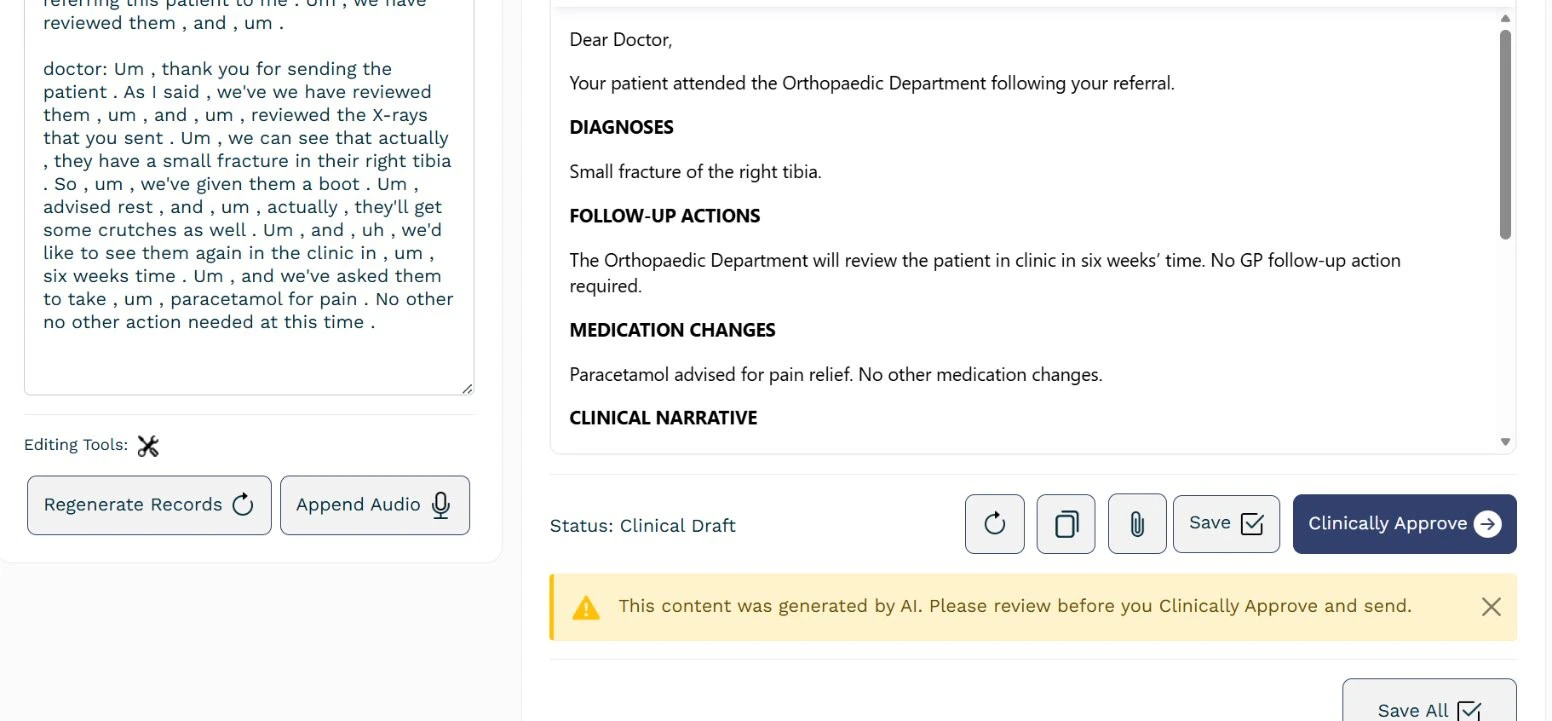
When you have reviewed the letter and are happy with it, press Clinically approve.
Clinically approve button on the letter page.
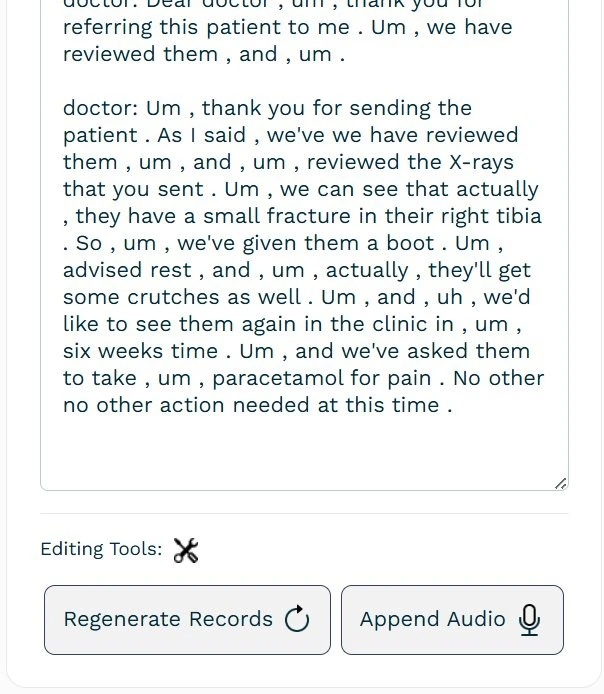
On the letter page you can add audio if you forgot something, then press Regenerate to update the letter with the new content.
Letter page option to add audio and regenerate the transcript.