Roles control what users can do in MedWrite (for example create records, approve letters, or manage organisation settings). Assign the right role so each user has the access they need.
1
Assign a role
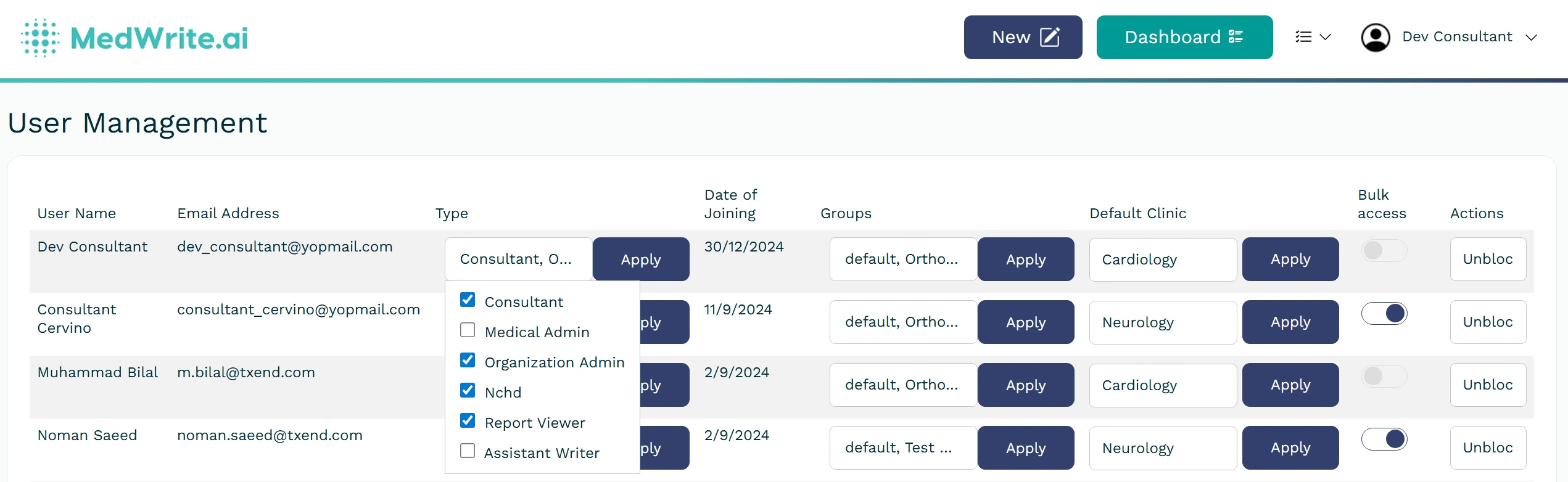
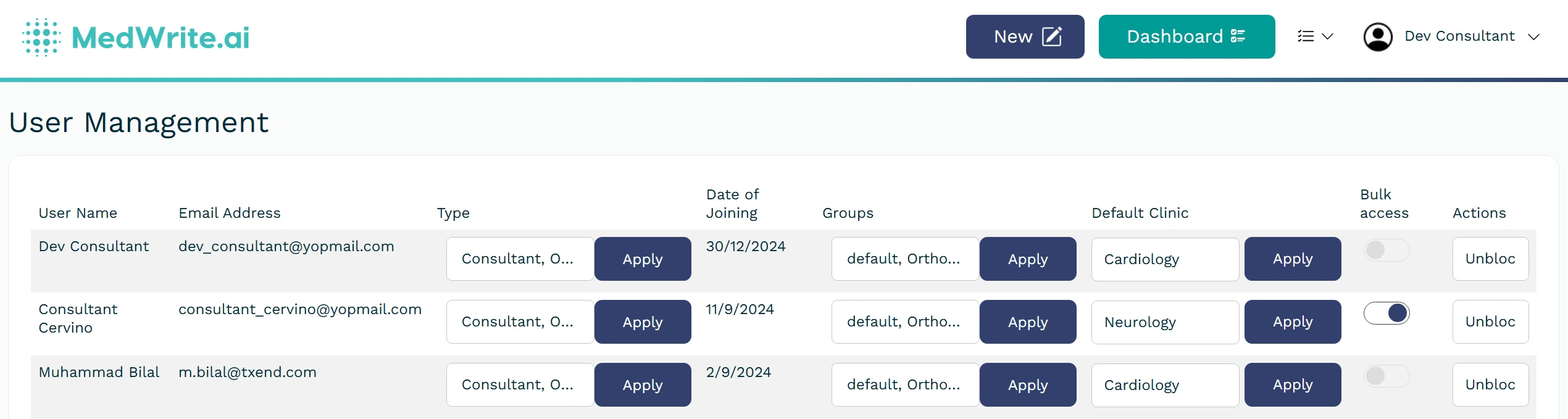
In user management, you can viewuser’s name, email role, and Groups.
User role dropdown or role assignment screen.
2
After assigning
The user’s permissions update straight away. You can set the permissions for each role in Workflow management.