
1
Start from the dashboard
Open your MedWrite dashboard and select New to create a new record.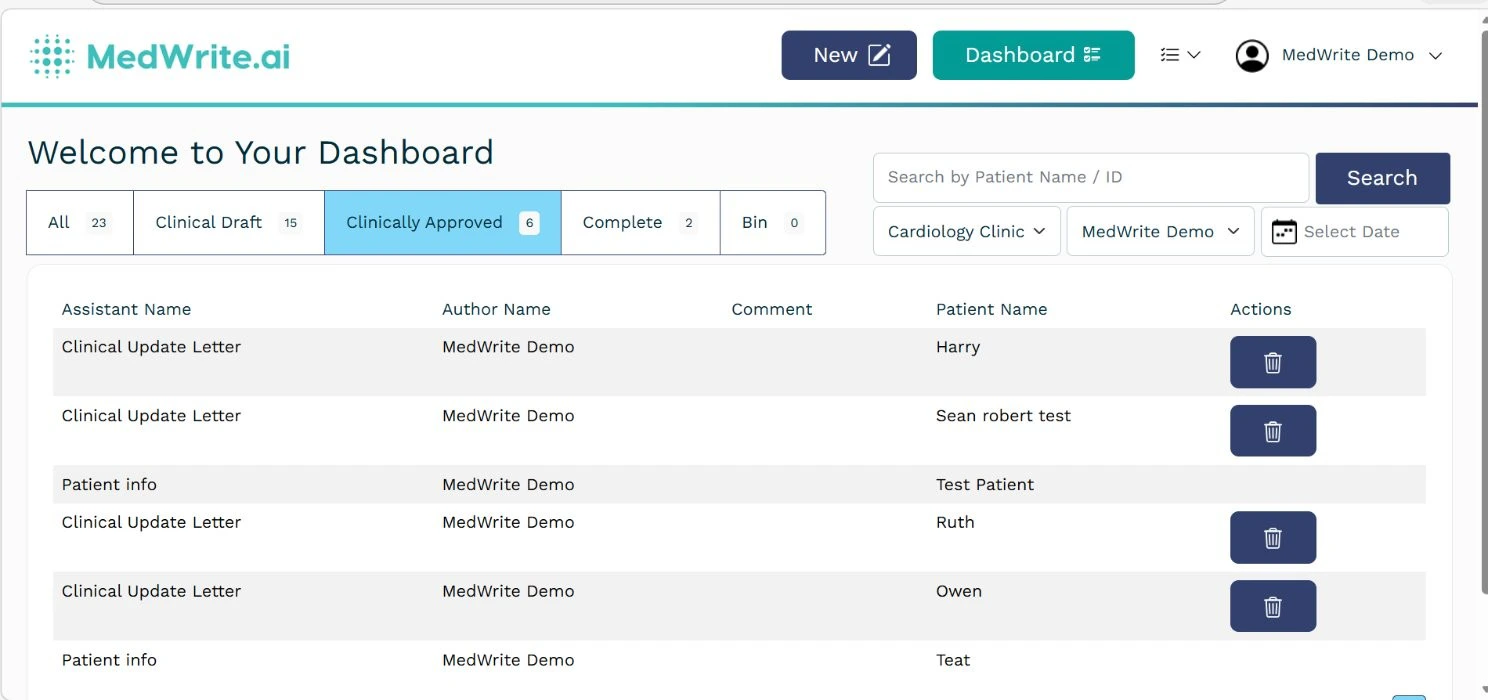
Dashboard with the New button to create a record.
2
Add patient details, assistant, and input type
On the create letter screen you do four things:
- Patient details – Enter or select the patient.
- AI Assistant – Choose the assistant that matches your clinic or letter type.
- AI Assistant Input – Pick how to add the consultation:
- Record – Capture by voice. MedWrite transcribes and structures the content.
- Manual input – Type or paste your notes into the form.
- Reference Files (optional) – Upload supporting files for extra AI context before generating the letter.

Create letter screen: patient details, assistant selection, and record vs manual input.
3
Review on the letter page
After you finish the record, you are taken to the letter page. There you can review, edit, and approve the generated letter before sharing or sending.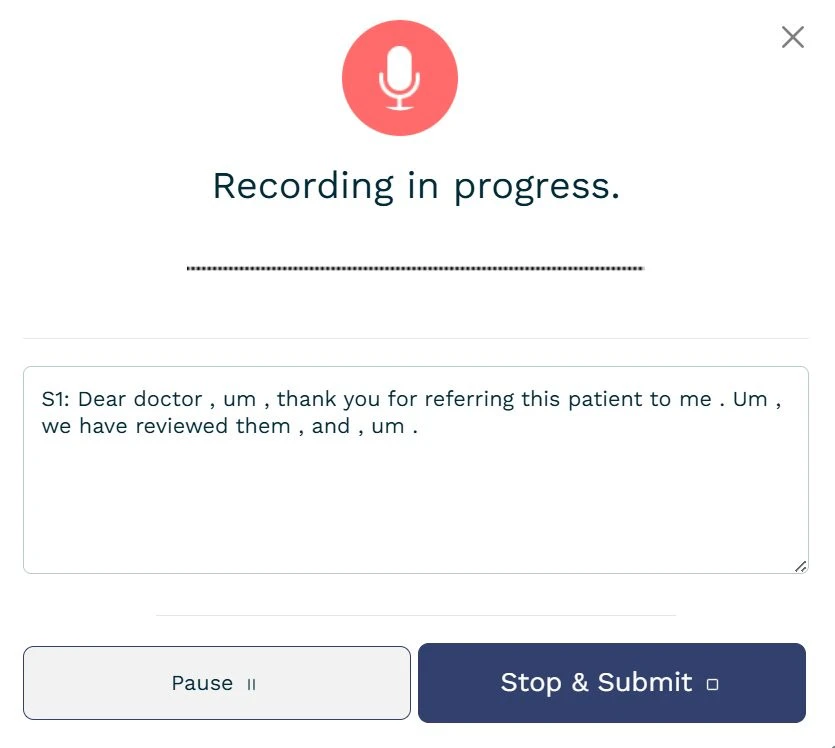
Recording in Progress
Next steps
Review Record
Review, clinically approve, and export your letter as PDF or Word.
Clinical Approval
Mark letters as clinically approved before sharing or sending.