> ## Documentation Index
> Fetch the complete documentation index at: https://docs.medwrite.ai/llms.txt
> Use this file to discover all available pages before exploring further.

# Workflow Status Tabs

> Switch between in progress, approved, and other statuses

Workflow status tabs let you switch between different states of records and letters (for example in progress, pending review, clinically approved). Use them to focus on what needs your action.

<Steps>
  <Step title="What the tabs show">
    Typical tabs might include **In progress**, **Pending review**, **Clinically approved**, or **Completed**. Each tab shows only the records or letters in that status.
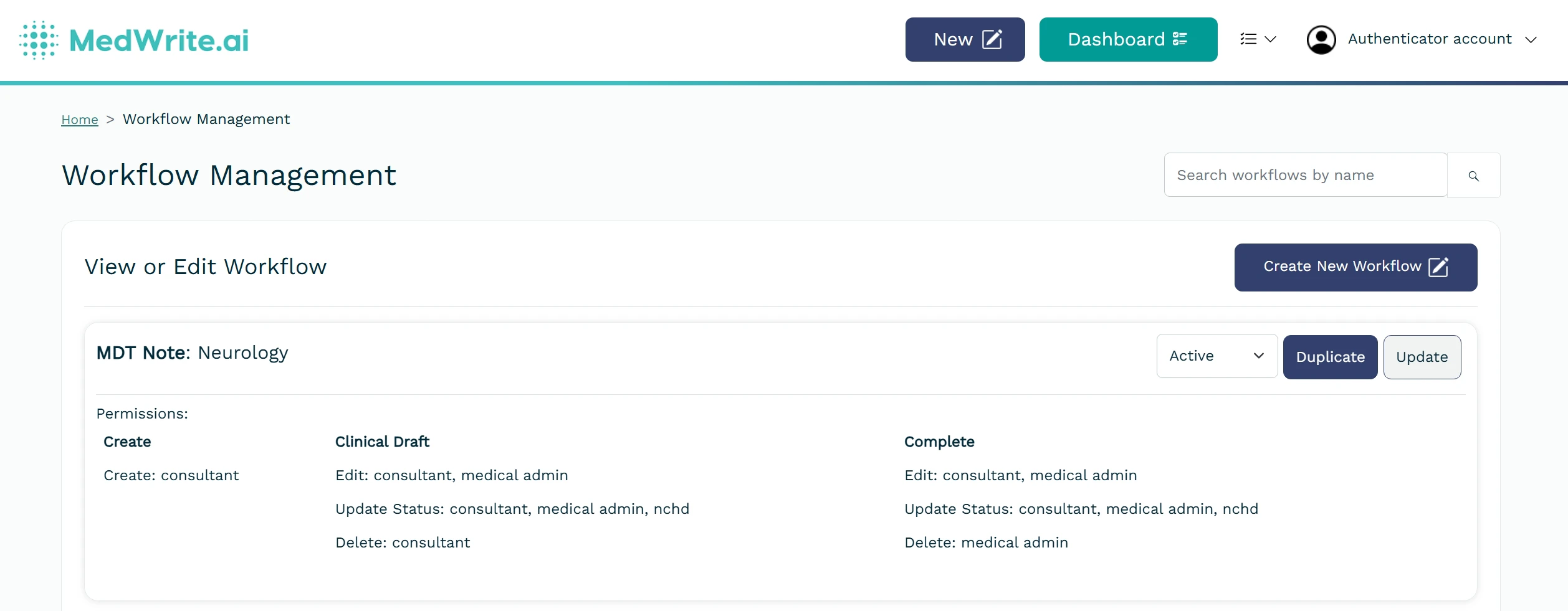
    <Frame hint="Click a tab to see only records or letters in that workflow state. The active tab is usually highlighted." caption="Workflow status tabs on dashboard.">
      <img src="https://mintcdn.com/medwriteai/i1uMIOI-jQmxw-rn/images/workflow-tab/listWorkflow.jpeg?fit=max&auto=format&n=i1uMIOI-jQmxw-rn&q=85&s=45d05789339c0da19f19b50bf975ec2c" alt="Workflow status tabs on dashboard" style={{ borderRadius: '0.5rem', maxWidth: '100%' }} width="2516" height="981" data-path="images/workflow-tab/listWorkflow.jpeg" />
    </Frame>
  </Step>

  <Step title="Using the tabs">
    Select a tab to see that list. Move through your workflow by opening items from each tab (for example review from Pending, export from Clinically approved).
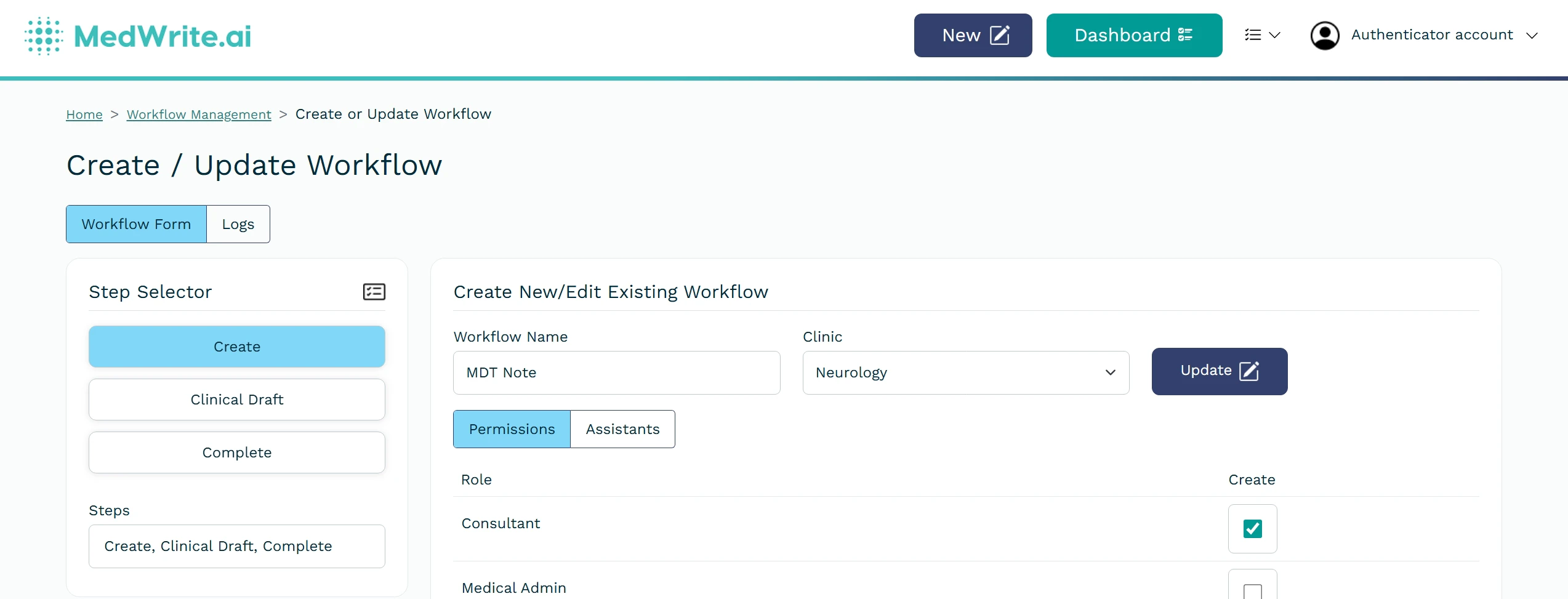
    <Frame hint="Open an item from the list to review, approve, or export." caption="List for selected status tab.">
      <img src="https://mintcdn.com/medwriteai/i1uMIOI-jQmxw-rn/images/workflow-tab/workflowDetails.jpeg?fit=max&auto=format&n=i1uMIOI-jQmxw-rn&q=85&s=9c4b404e067cf520d6a114df56917e6a" alt="List for selected status tab" style={{ borderRadius: '0.5rem', maxWidth: '100%' }} width="2547" height="973" data-path="images/workflow-tab/workflowDetails.jpeg" />
    </Frame>
  </Step>
</Steps>

## Next steps

<Columns cols={2}>
  <Card title="Clinical Approval" icon="badge-check" href="/essentials/clinical-approval">
    Review and clinically approve letters.
  </Card>

  <Card title="Clinic / Consultant Filters" icon="bars-filter" href="/clinic-consultant-filters">
    Filter the dashboard by clinic or consultant.
  </Card>
</Columns>
