> ## Documentation Index
> Fetch the complete documentation index at: https://docs.medwrite.ai/llms.txt
> Use this file to discover all available pages before exploring further.
# Register
> Create a new MedWrite account
Register to get access to MedWrite. You need an account to create records, use AI assistants, and manage clinical letters.
On the MedWrite site or login page, click **Sign up** to open the registration flow.
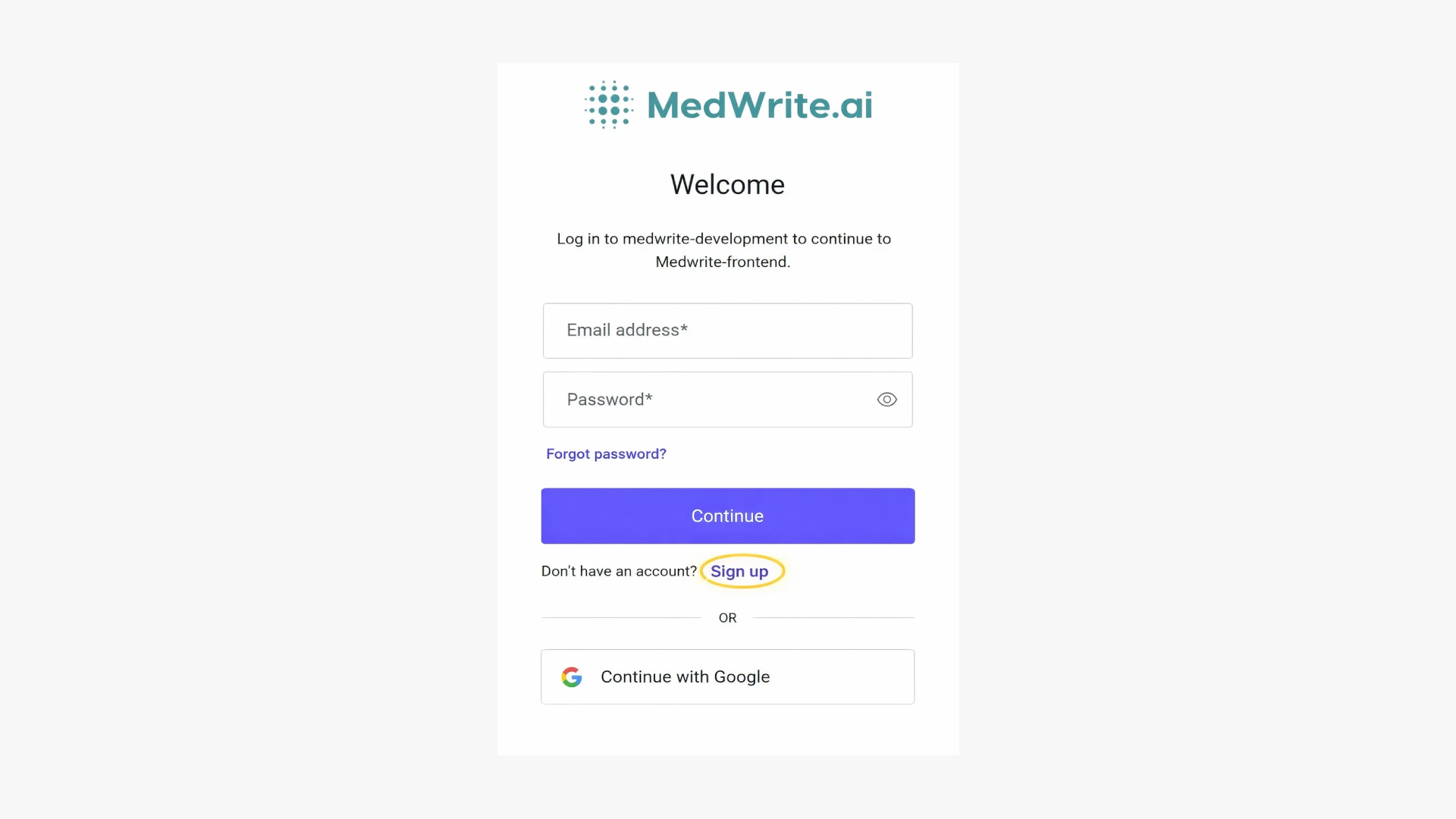 After you register, check your email for an activation link. Use it to activate your account so you can log in and use the dashboard.
First, select your **organisation** on the registration page. This links your account to the right clinic or organisation.
After you register, check your email for an activation link. Use it to activate your account so you can log in and use the dashboard.
First, select your **organisation** on the registration page. This links your account to the right clinic or organisation.
 Enter your details: **name**, **profession**, **speciality**, and **country**. Submit the form to create your account.
 After all your information has been added, and your information filled in, a system admin will have to accept your account and assign your permissions.
If you do not receive the activation email, check spam or request a new activation link from the login page.
## Next steps
Activate your account after registration.
Sign in to your MedWrite account.
After all your information has been added, and your information filled in, a system admin will have to accept your account and assign your permissions.
If you do not receive the activation email, check spam or request a new activation link from the login page.
## Next steps
Activate your account after registration.
Sign in to your MedWrite account.