> ## Documentation Index
> Fetch the complete documentation index at: https://docs.medwrite.ai/llms.txt
> Use this file to discover all available pages before exploring further.

# Patient List Table

> View patients in a table with key details

The patient list table shows your patients in a table. You can see key details at a glance and open a patient to view or edit, or to create a record.

<Steps>
  <Step title="What the table shows">
    Columns typically include patient name, ID, and maybe clinic or last activity. Use the table to scan and find the patient you need. You can sort by column if the table supports it.
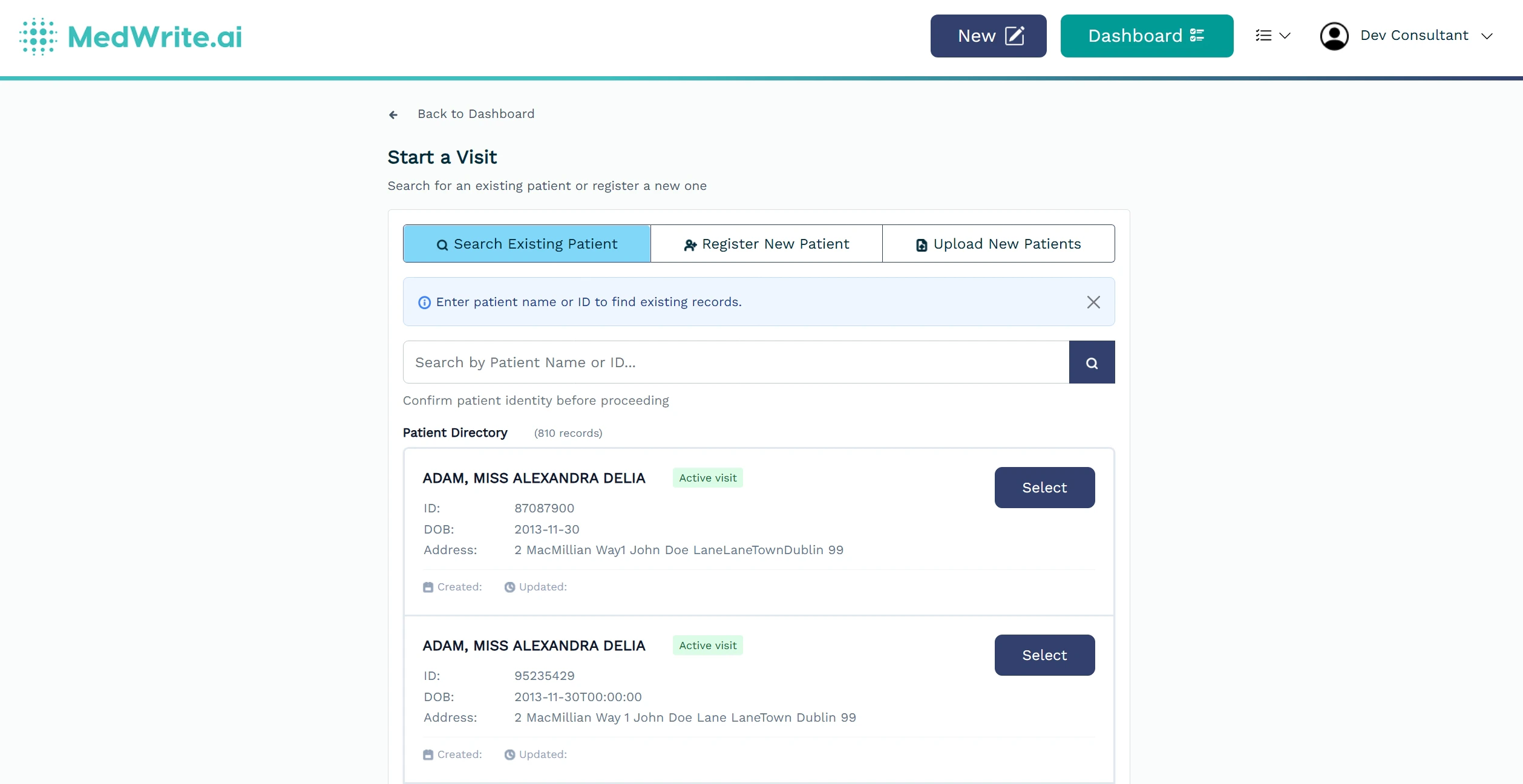
    <Frame hint="Use search or filters above the table to narrow the list. Click a column header to sort if supported." caption="Patient list table with columns.">
      <img src="https://mintcdn.com/medwriteai/pkwu_NMHKTzVXNda/images/patient-list/patientManager.jpeg?fit=max&auto=format&n=pkwu_NMHKTzVXNda&q=85&s=f8dee93ccecc1f451e49ba2ae4bc106f" alt="Patient list table with columns" style={{ borderRadius: '0.5rem', maxWidth: '100%' }} width="2517" height="1296" data-path="images/patient-list/patientManager.jpeg" />
    </Frame>
  </Step>

  <Step title="Opening a patient">
    Select a row to open that patient's details. From there you can edit information or start a new record for them.
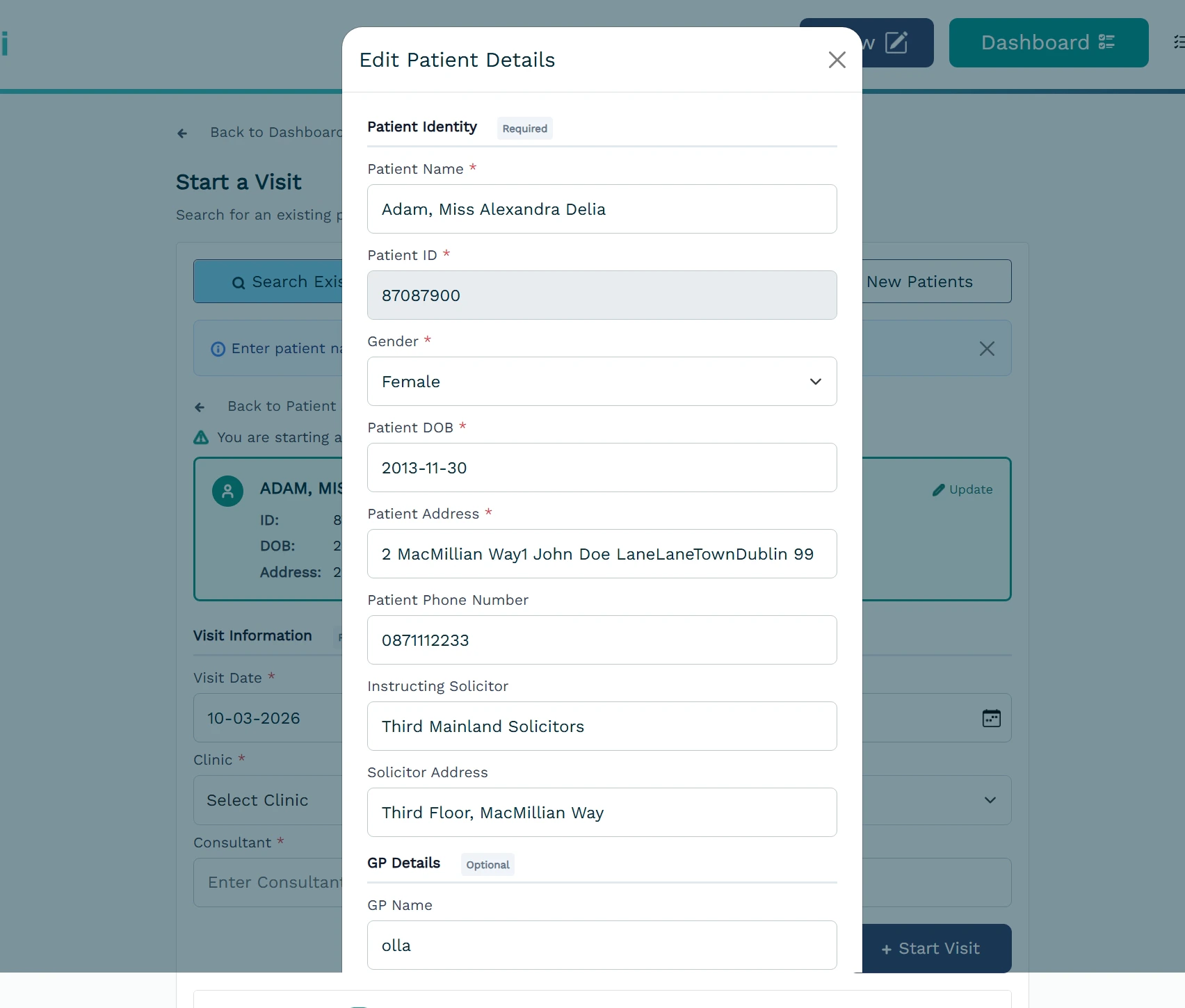
    <Frame hint="Click a row to open the patient. You can then view or edit details or start a new record for that patient." caption="Patient row selected or patient detail.">
      <img src="https://mintcdn.com/medwriteai/pkwu_NMHKTzVXNda/images/patient-list/patientDetails.jpeg?fit=max&auto=format&n=pkwu_NMHKTzVXNda&q=85&s=270637212d8b46656e0b66dbcebf7a8c" alt="Patient row selected or patient detail" style={{ borderRadius: '0.5rem', maxWidth: '100%' }} width="1704" height="1450" data-path="images/patient-list/patientDetails.jpeg" />
    </Frame>
  </Step>
</Steps>

## Next steps

<Columns cols={2}>
  <Card title="Manage Patients" icon="clipboard-list-check" href="/essentials/manage-patients">
    View and manage patient information.
  </Card>

  <Card title="Search Patient" icon="magnifying-glass" href="/search-patient">
    Find a patient by name, ID, or other details.
  </Card>
</Columns>
