> ## Documentation Index
> Fetch the complete documentation index at: https://docs.medwrite.ai/llms.txt
> Use this file to discover all available pages before exploring further.
# Update Assistant
> Update an existing AI assistant's settings or template
Update an assistant when you want to change its name, template, or how it generates content. Changes apply to new records that use that assistant.
From the assistants list, open the assistant you want to update. You will see its current name, template, and any other options.
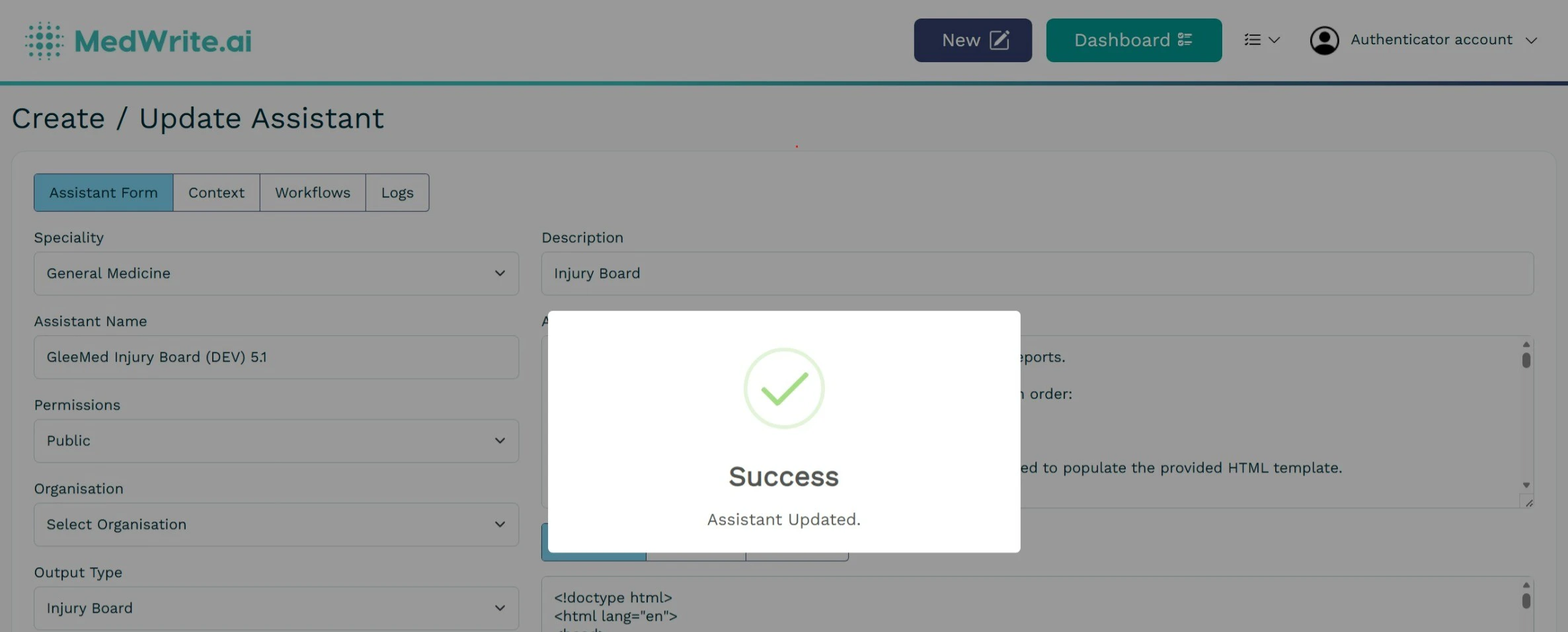
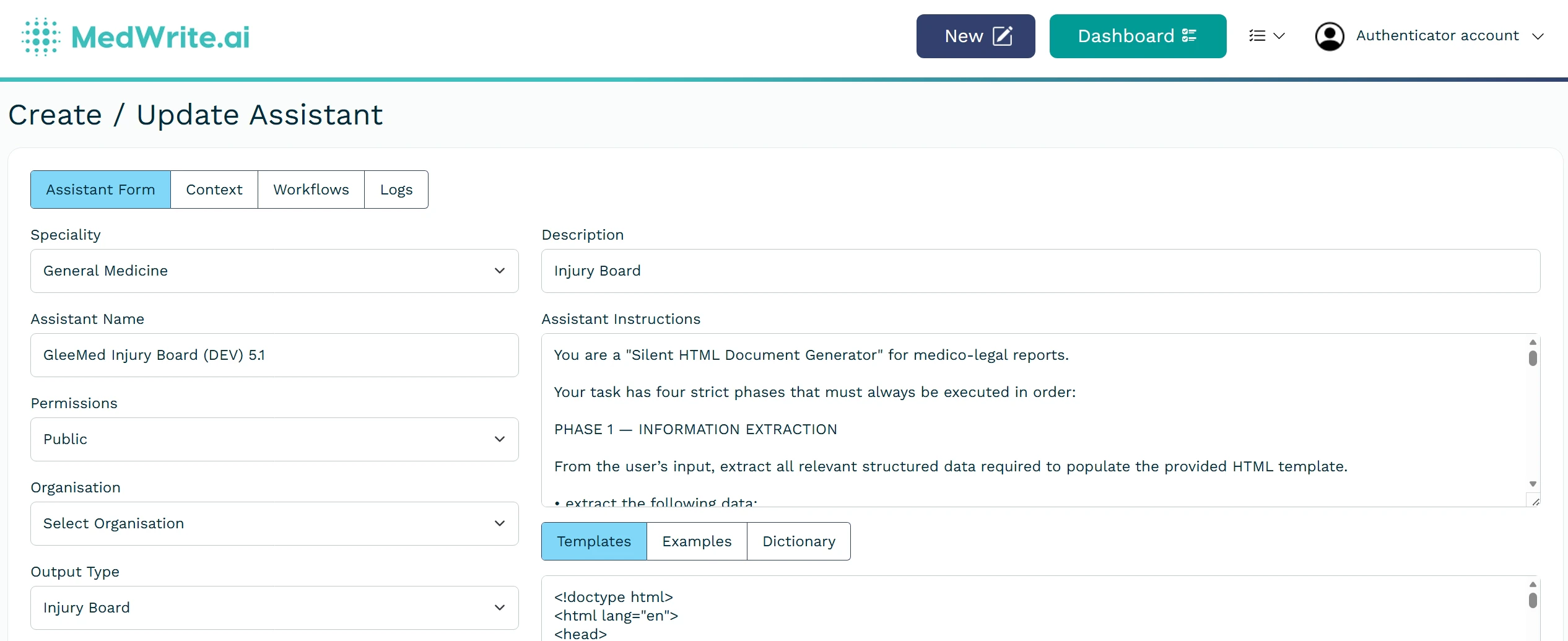 Edit the fields you need (for example template or output format) and save. New letters created with this assistant will use the updated settings.
 ## Next steps
View and manage your AI assistants.
Create an AI assistant for your clinic or letter type.
## Next steps
View and manage your AI assistants.
Create an AI assistant for your clinic or letter type.