> ## Documentation Index
> Fetch the complete documentation index at: https://docs.medwrite.ai/llms.txt
> Use this file to discover all available pages before exploring further.
# Send Email
> Send approved letters by email from MedWrite
You can send approved letters by email directly from the dashboard. This is useful for sending to GPs, patients, or other recipients. Medwrite does not automatically have this it will need to be configured with an organisation email.
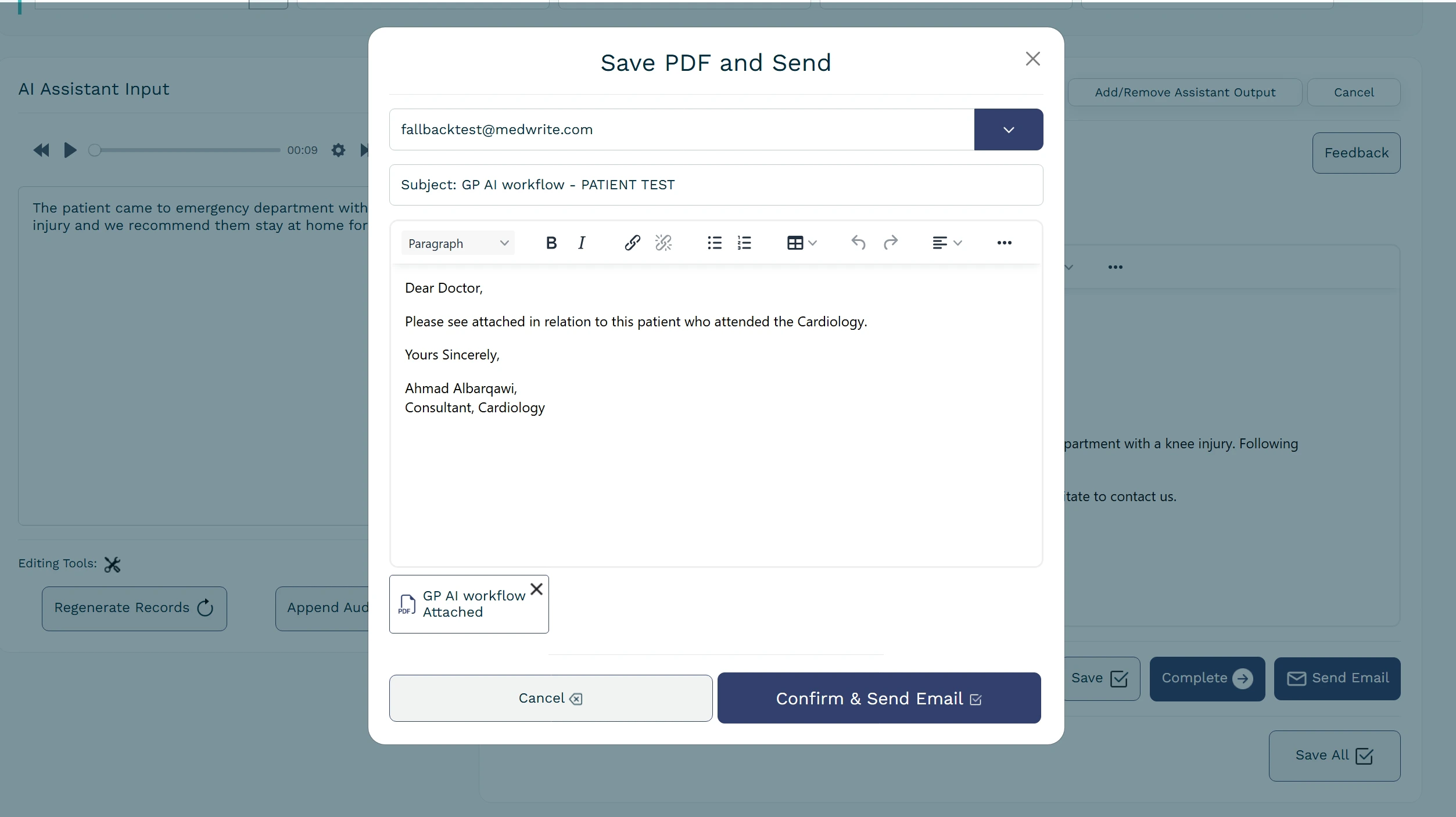
From the clinically approved section, open a letter and use the option to send by email. Enter the recipient address and add a message if needed.
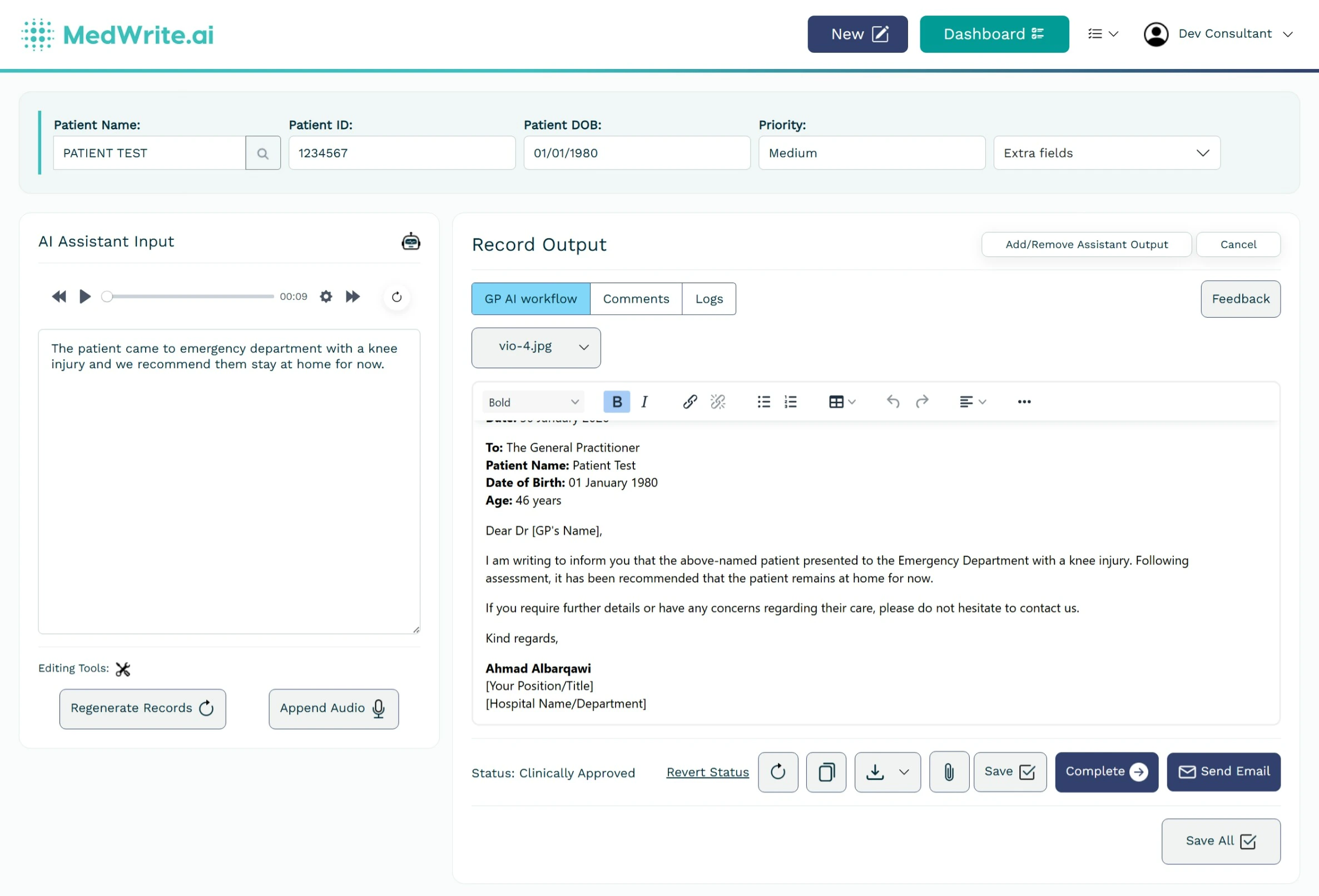 The letter PDF is attached to the email. The recipient receives the letter and any note you added.
 ## Next steps
Review and clinically approve letters before sending.
Mark a record or letter as complete when finished.
## Next steps
Review and clinically approve letters before sending.
Mark a record or letter as complete when finished.