> ## Documentation Index
> Fetch the complete documentation index at: https://docs.medwrite.ai/llms.txt
> Use this file to discover all available pages before exploring further.

# Review Records

> Review records and letters on the mobile app

On the mobile app you can open and review your records and letters. Edit the content if needed, then approve or mark as complete when you are done.

<Steps>
  <Step title="View records on the app">
    Open the records or letters section in the app to see your list. Tap a record to open it and view the transcript and generated letter.
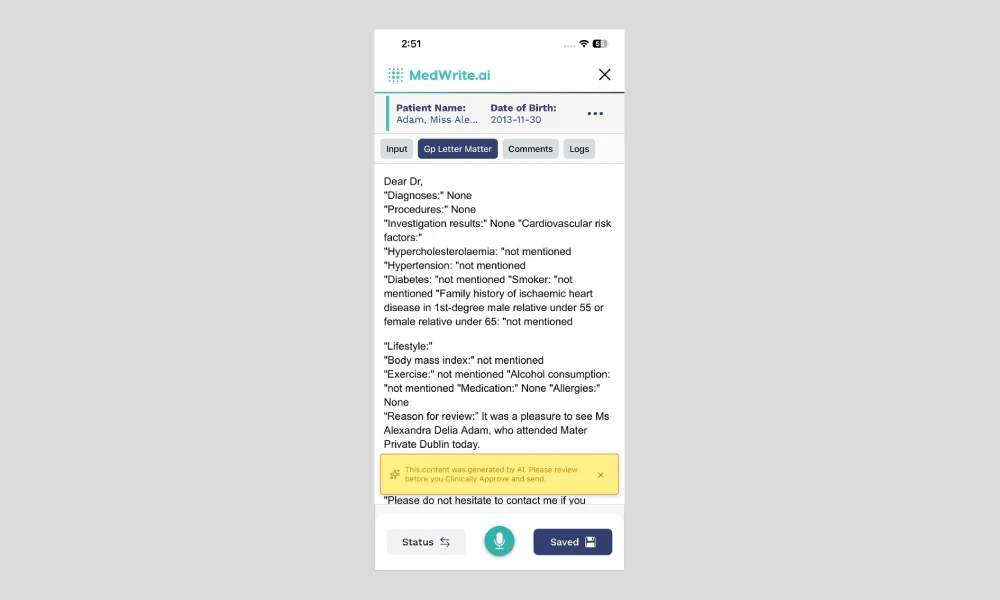
    <Frame hint="Tapping one opens the full letter and transcript. You should see a list of records or letters, often with patient name and date." caption="Mobile app records list or letter view.">
      <img src="https://mintcdn.com/medwriteai/pkwu_NMHKTzVXNda/images/review-records-mobile/mobileLetterPageDraft.png?fit=max&auto=format&n=pkwu_NMHKTzVXNda&q=85&s=4b2f207662398d0540c77919ee45fb7b" alt="Mobile app records list or letter view" style={{ borderRadius: '0.5rem', maxWidth: '100%' }} width="1000" height="600" data-path="images/review-records-mobile/mobileLetterPageDraft.png" />
    </Frame>
  </Step>

  <Step title="Edit and approve">
    Edit the letter text in the app as you would on the web. When you are happy with it, use **Clinically approve** or **Mark as complete**.
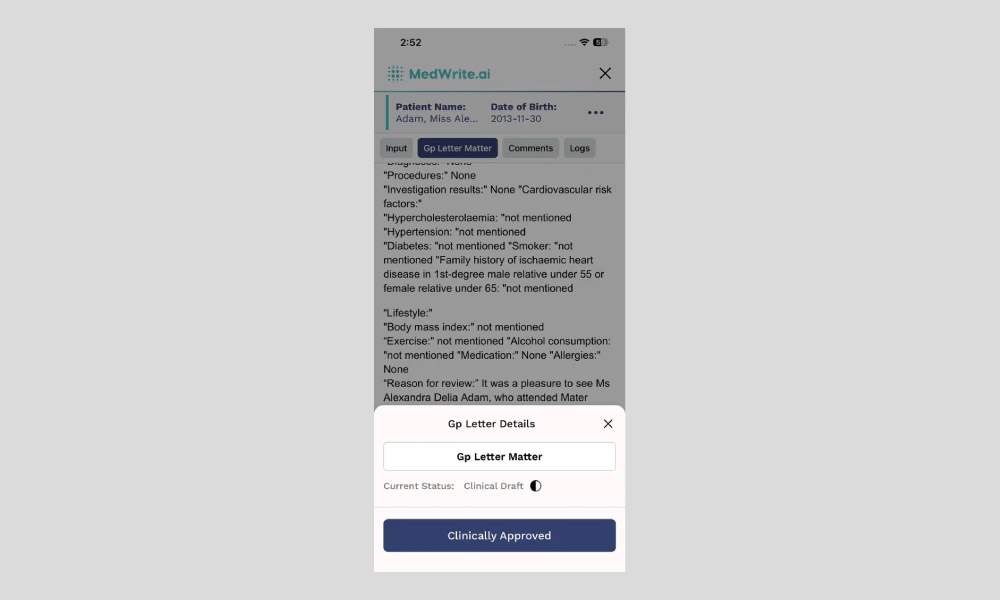
    <Frame hint="Changes sync to the dashboard so you can also export as PDF or Word from the web." caption="Edit letter or approve on app.">
      <img src="https://mintcdn.com/medwriteai/pkwu_NMHKTzVXNda/images/review-records-mobile/mobileClinicalApproveButton.png?fit=max&auto=format&n=pkwu_NMHKTzVXNda&q=85&s=487276feaf763cb108d5cb6e4150b652" alt="Edit letter or approve on app" style={{ borderRadius: '0.5rem', maxWidth: '100%' }} width="1000" height="600" data-path="images/review-records-mobile/mobileClinicalApproveButton.png" />
    </Frame>
  </Step>
</Steps>

## Next steps

<Columns cols={2}>
  <Card title="Approve Records" icon="badge-check" href="/essentials/approve-records">
    Clinically approve records from the mobile app.
  </Card>

  <Card title="Search Records" icon="magnifying-glass" href="/essentials/search-records">
    Search for records or letters on the mobile app.
  </Card>
</Columns>
