> ## Documentation Index
> Fetch the complete documentation index at: https://docs.medwrite.ai/llms.txt
> Use this file to discover all available pages before exploring further.
# Manage Patients
> View and manage patient information in MedWrite
Patient management lets you see and update patient details, link them to records, and keep information consistent across letters.
From the dropdown beside your name click on "patient Manager"
You will see 3 tabs, Search Existing Patient Register New Patient, and upload new patients.
**Search Existing Patient**
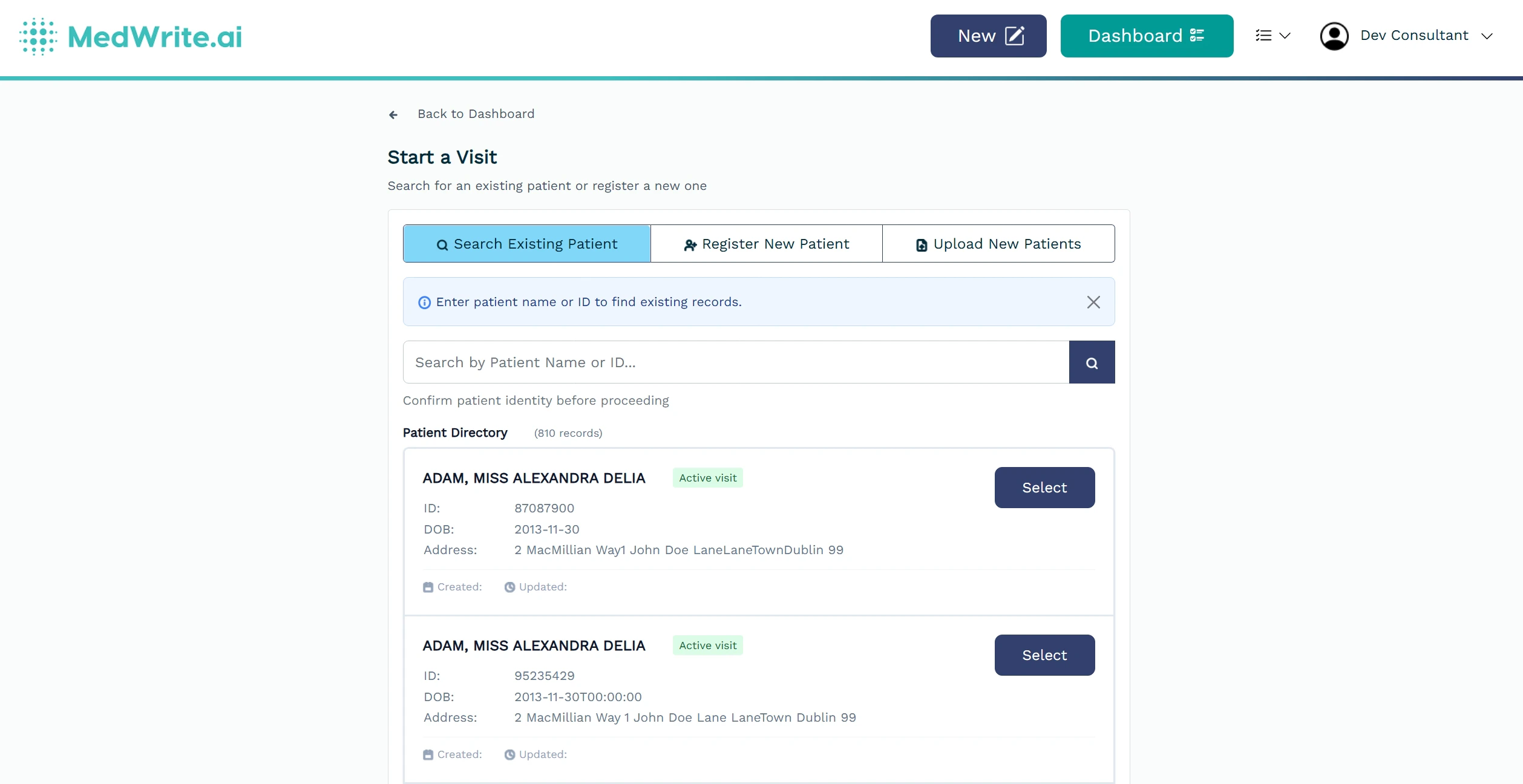 From here you can view and search for your patients.
**Selected Patient**
From here you can view and search for your patients.
**Selected Patient**
 After you select a patient, you can see their information or create a **visit**.
**Visits** are what makes patients available to specific Clinics.
Select a clinic and visit date to make this patient available to a clinic.
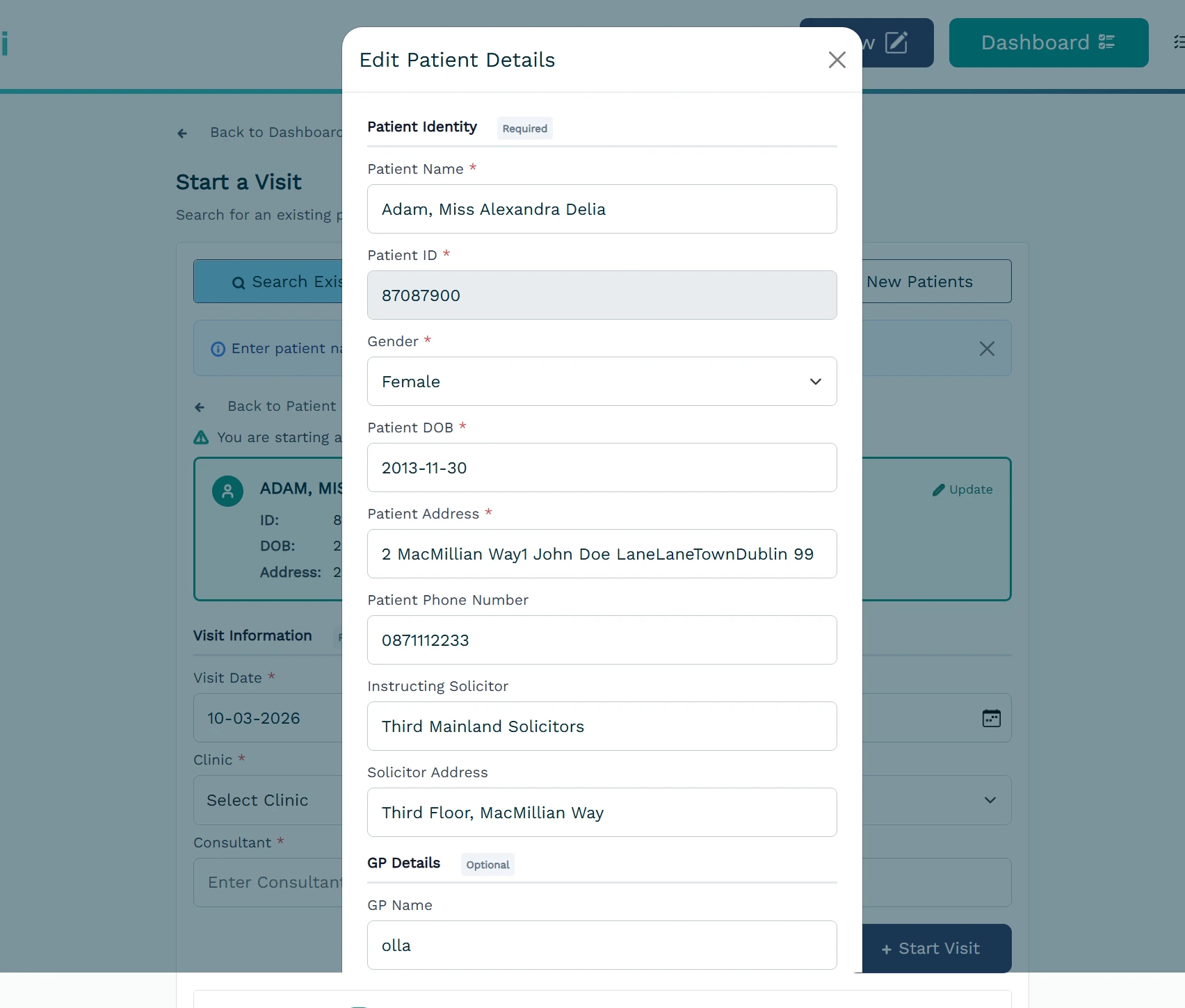 You can also edit a patient's information from here by clicking update.
**Register New Patient**
There are 2 ways to Register New Patients\*. One is manually by clicking the Register New Patient Tab, or by uploading a CSV containing the patient information.
You can download an example of the CSV in the upload new patients tab.

\*Not Including EHR Integrations
## Next steps
Create a new record for a patient.
Find a patient by name, ID, or other details.