> ## Documentation Index
> Fetch the complete documentation index at: https://docs.medwrite.ai/llms.txt
> Use this file to discover all available pages before exploring further.
# Manage Assistants
> View and manage your AI assistants
Manage assistants from one place. You can see all assistants, edit their settings, or disable them when they are not needed.
Open the assistants section to see every assistant in your organisation. Each entry shows the name, linked template, and whether it is active.
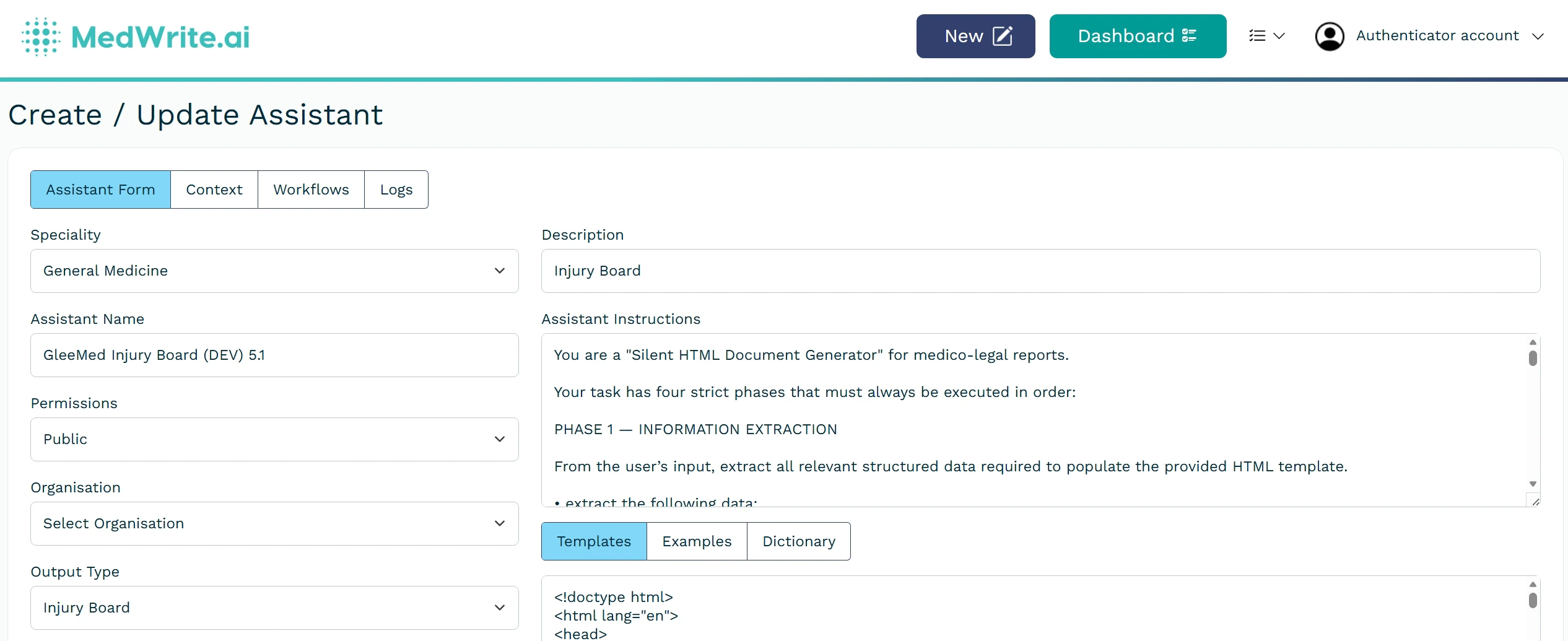
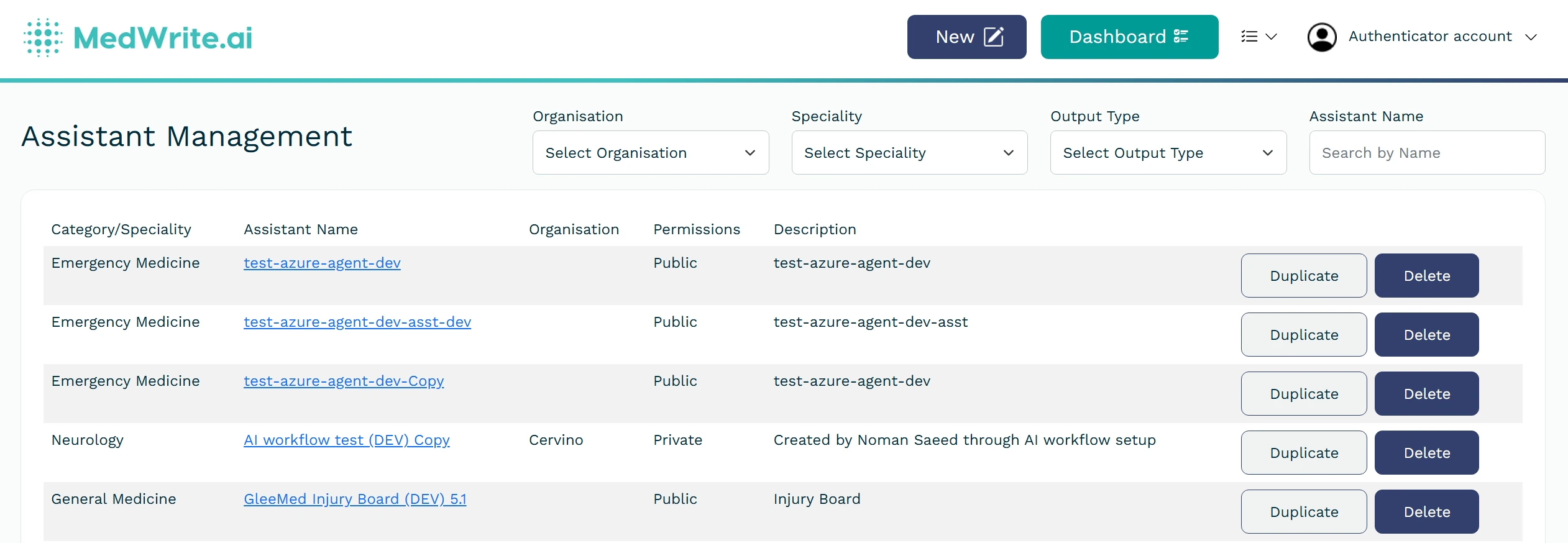 Open an assistant to change its name, template, or other settings. You can disable an assistant so it no longer appears when creating records.
 ## Next steps
Create an AI assistant for your clinic or letter type.
Update an existing assistant's settings or template.
## Next steps
Create an AI assistant for your clinic or letter type.
Update an existing assistant's settings or template.