> ## Documentation Index
> Fetch the complete documentation index at: https://docs.medwrite.ai/llms.txt
> Use this file to discover all available pages before exploring further.

# Download the App

> Get the MedWrite mobile app for recording on the go

The MedWrite mobile app lets you record consultations and manage records from your phone or tablet. Follow these steps to install and start using it.

<div className="store-buttons">
  <a href="https://play.google.com/store/apps/details?id=com.ai.medwrite.ltd" target="_blank" rel="noreferrer" className="store-button">
    <img src="https://mintcdn.com/medwriteai/fumn6lG29vGR3bLm/images/google-play.png?fit=max&auto=format&n=fumn6lG29vGR3bLm&q=85&s=1066ef23a99c3771d37c1fda0129c6be" alt="Google Play icon" className="store-button-icon" width="64" height="64" data-path="images/google-play.png" />

    <span className="store-button-text">
      <span className="store-button-kicker">GET IT ON</span>
      <span className="store-button-title">Google Play</span>
    </span>
  </a>

  <a href="https://apps.apple.com/ie/app/medwrite-ai-clinical-assistant/id6736395443" target="_blank" rel="noreferrer" className="store-button">
    <img src="https://mintcdn.com/medwriteai/-Z737HAJGL0A9Ty2/images/apple-logo.svg?fit=max&auto=format&n=-Z737HAJGL0A9Ty2&q=85&s=925f12d4d921446071900d3de98cc748" alt="" className="store-button-icon" aria-hidden="true" width="24" height="24" data-path="images/apple-logo.svg" />

    <span className="store-button-text">
      <span className="store-button-kicker">Download on the</span>
      <span className="store-button-title">App Store</span>
    </span>
  </a>
</div>

<Steps>
  <Step title="Go to the store or MedWrite site">
    Get the app from the App Store (iOS) or Google Play (Android). You can also use a link from the MedWrite website or your dashboard.

    <Frame hint="You should see the MedWrite app listing with an Install or Get button." caption="App store or download page.">
      <img src="https://mintcdn.com/medwriteai/eyU1Rr1J1o65axdI/images/download-app-mobile/mobile-store.png?fit=max&auto=format&n=eyU1Rr1J1o65axdI&q=85&s=892881abde8f5d378a38aca1724de0aa" alt="MedWrite app in the app store with Install or Get" className="download-app-frame-image" width="1000" height="600" data-path="images/download-app-mobile/mobile-store.png" />
    </Frame>
  </Step>

  <Step title="Install and open">
    Install the app and open it. You will see the MedWrite login or welcome screen.
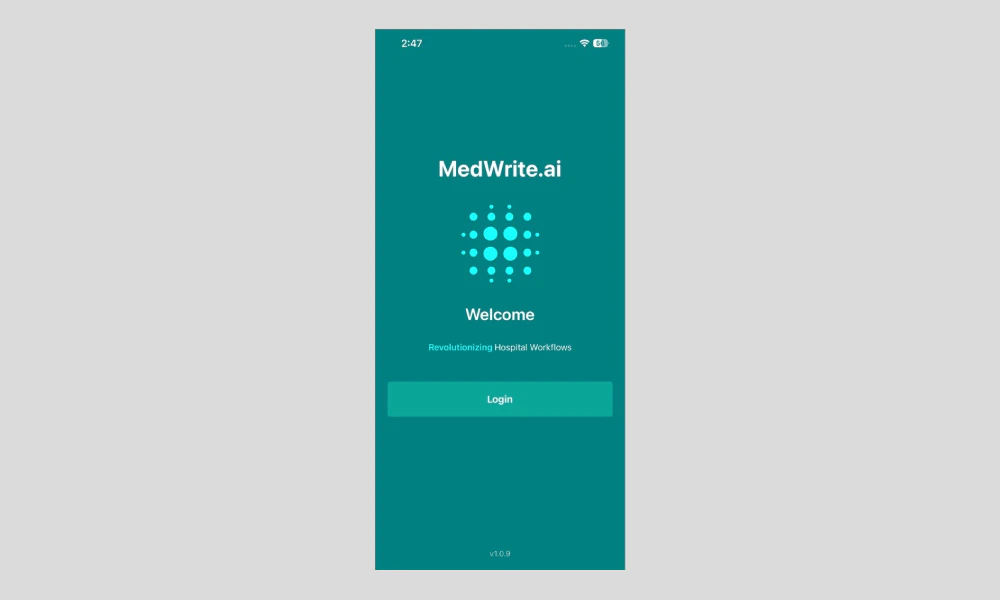
    <Frame hint="After opening, the app shows the login screen or dashboard if you are already signed in." caption="MedWrite app login or welcome screen.">
      <img src="https://mintcdn.com/medwriteai/pkwu_NMHKTzVXNda/images/download-app-mobile/mobileLoginLanding.png?fit=max&auto=format&n=pkwu_NMHKTzVXNda&q=85&s=62b5fade75dcf06ff77dc3c2494feb9e" alt="MedWrite app login or welcome screen" className="download-app-frame-image" width="1000" height="600" data-path="images/download-app-mobile/mobileLoginLanding.png" />
    </Frame>
  </Step>

  <Step title="Log in and sync">
    Log in with your MedWrite account. You can then record consultations, view records, and approve letters from your device.
  </Step>
</Steps>

<Note>
  Changes you make on the mobile app (new records, approvals, edits) sync with the web dashboard. You can switch between app and web and see the same data.
</Note>

## Next steps

<Columns cols={2}>
  <Card title="Activate Your Account" icon="user-check" href="/essentials/activate-account">
    Activate your account after registration.
  </Card>

  <Card title="Record Consultation" icon="record-vinyl" href="/essentials/record-consultation">
    Record a consultation on the mobile app.
  </Card>
</Columns>
