> ## Documentation Index
> Fetch the complete documentation index at: https://docs.medwrite.ai/llms.txt
> Use this file to discover all available pages before exploring further.
# Create Group
> Create a group to organise users or consultants in your organisation
Groups let you organise users or consultants (for example by department or role). You can then assign permissions or filter views by group.\
Users will be able to see each other's records when they're in the same group. If they are not in the same group, they won't be able to.
To create a group you need organisation admin permissions.
 \
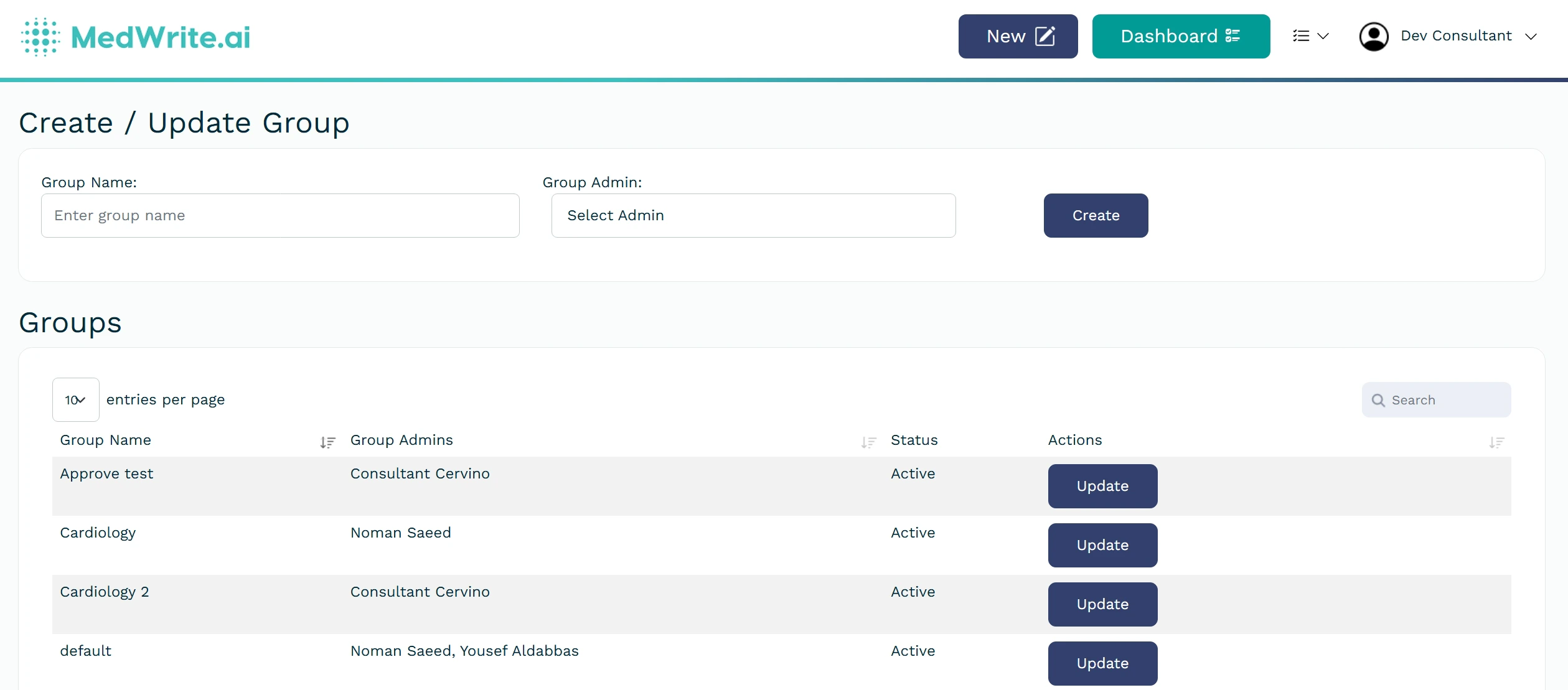
Click the Drop down beside your username and select the option to create a new group. Give the group a name and assign group admins.
\
Click the Drop down beside your username and select the option to create a new group. Give the group a name and assign group admins.
 Once a group exists, a group admin can assign users to it and use it to filter the dashboard (for example by consultant or team).
 ## Next steps
Add a new clinic to your organisation.
View and manage patient information.
## Next steps
Add a new clinic to your organisation.
View and manage patient information.