> ## Documentation Index
> Fetch the complete documentation index at: https://docs.medwrite.ai/llms.txt
> Use this file to discover all available pages before exploring further.

# Clinical Approval

> Review and clinically approve letters before sharing or sending

Clinical approval is the step where you confirm that a letter is correct and ready to send. Only approved letters can be exported or shared.

<Steps>
  <Step title="Approve on the letter page">
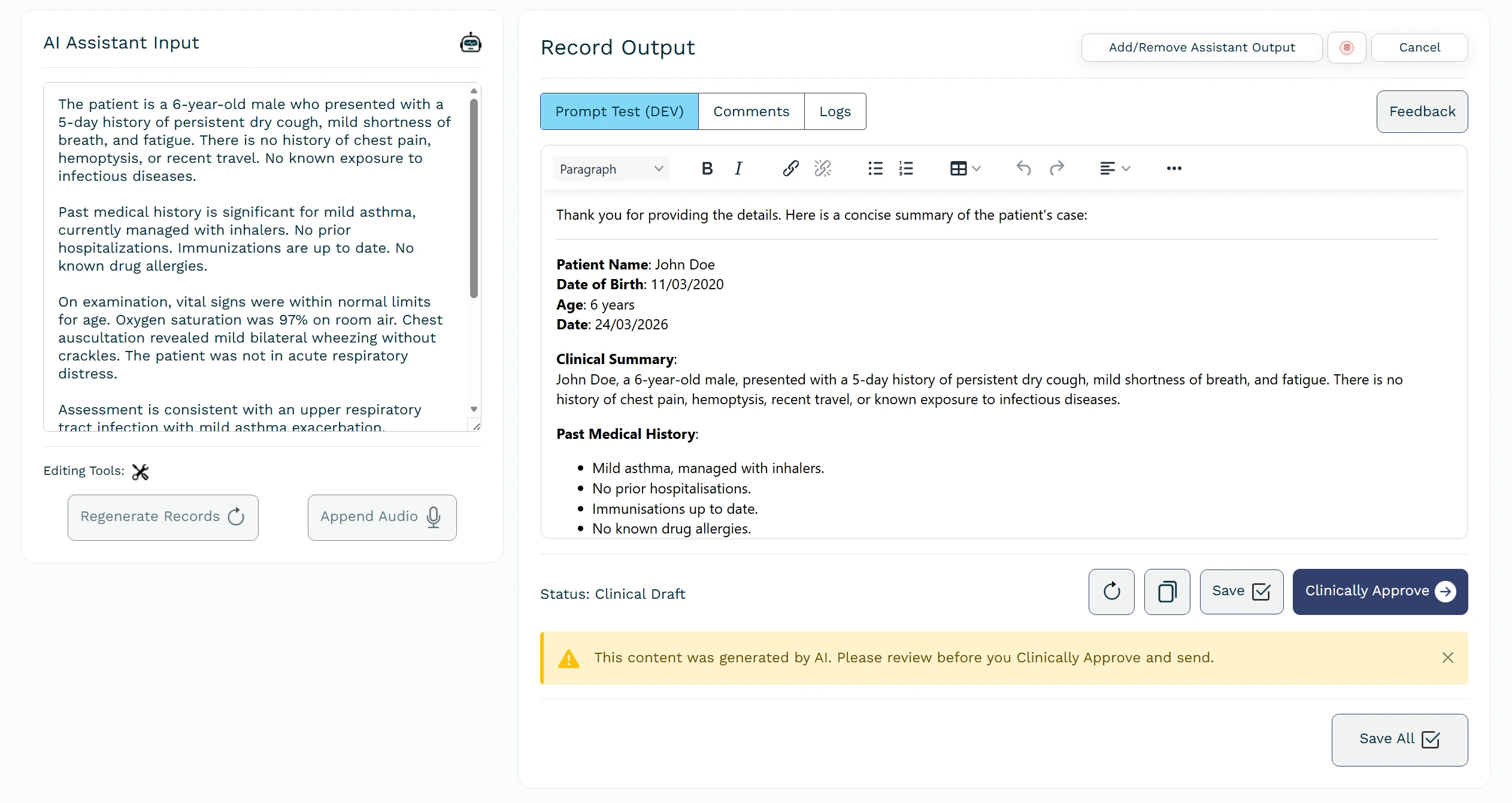
    After you review the letter on the letter page, use **Clinically approve** to mark it as approved.

    <Frame hint="Review the letter content before approving. Only approve when it is correct and ready to send." caption="Letter page with **Clinically approve** button.">
      <img src="https://mintcdn.com/medwriteai/jIVS5HjzeUn2_UUP/images/clinical-approve/letterApprove.jpeg?fit=max&auto=format&n=jIVS5HjzeUn2_UUP&q=85&s=9ca0e9e86483a617834c657b8cf10533" alt="Letter page with Clinically approve button" style={{ borderRadius: '0.5rem', maxWidth: '100%' }} width="2525" height="1341" data-path="images/clinical-approve/letterApprove.jpeg" />
    </Frame>

    <div style={{ display: 'flex', flexDirection: 'column', gap: '1.5rem' }}>
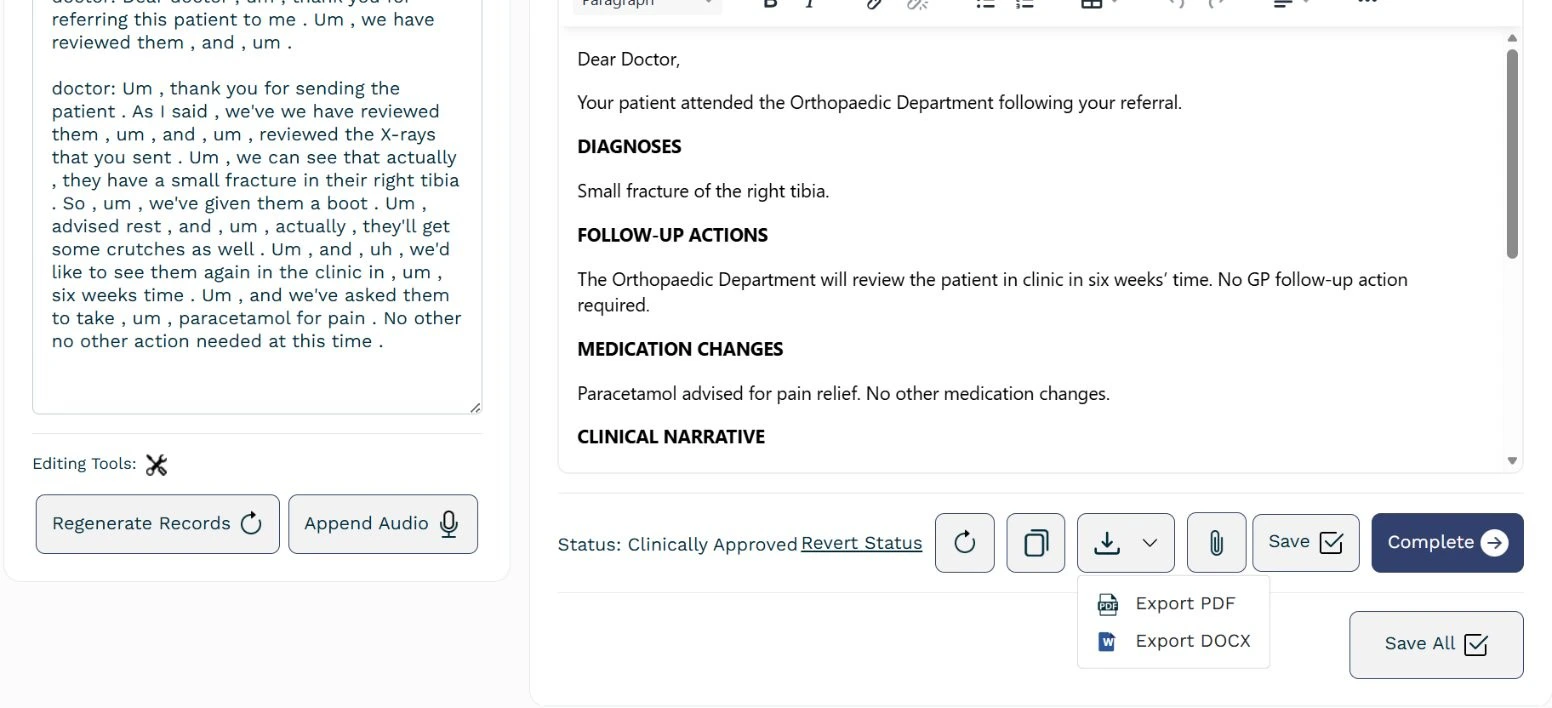
      After clinical approval of the assistant’s output, you can export the generated content as a PDF or Word document.

      <Frame hint="From the list you can export as PDF or Word or send by email." caption="PDF and Word export options.">
        <img src="https://mintcdn.com/medwriteai/R5Bs1ncwatpjoUpI/images/clinical-approve/letterExport.jpg?fit=max&auto=format&n=R5Bs1ncwatpjoUpI&q=85&s=dd4142ead3f27c8c67016e48fca6c6a8" alt="PDF and Word export options" style={{ borderRadius: '0.5rem', maxWidth: '100%' }} width="1552" height="708" data-path="images/clinical-approve/letterExport.jpg" />
      </Frame>
    </div>
  </Step>

  <Step title="Use approved letters">
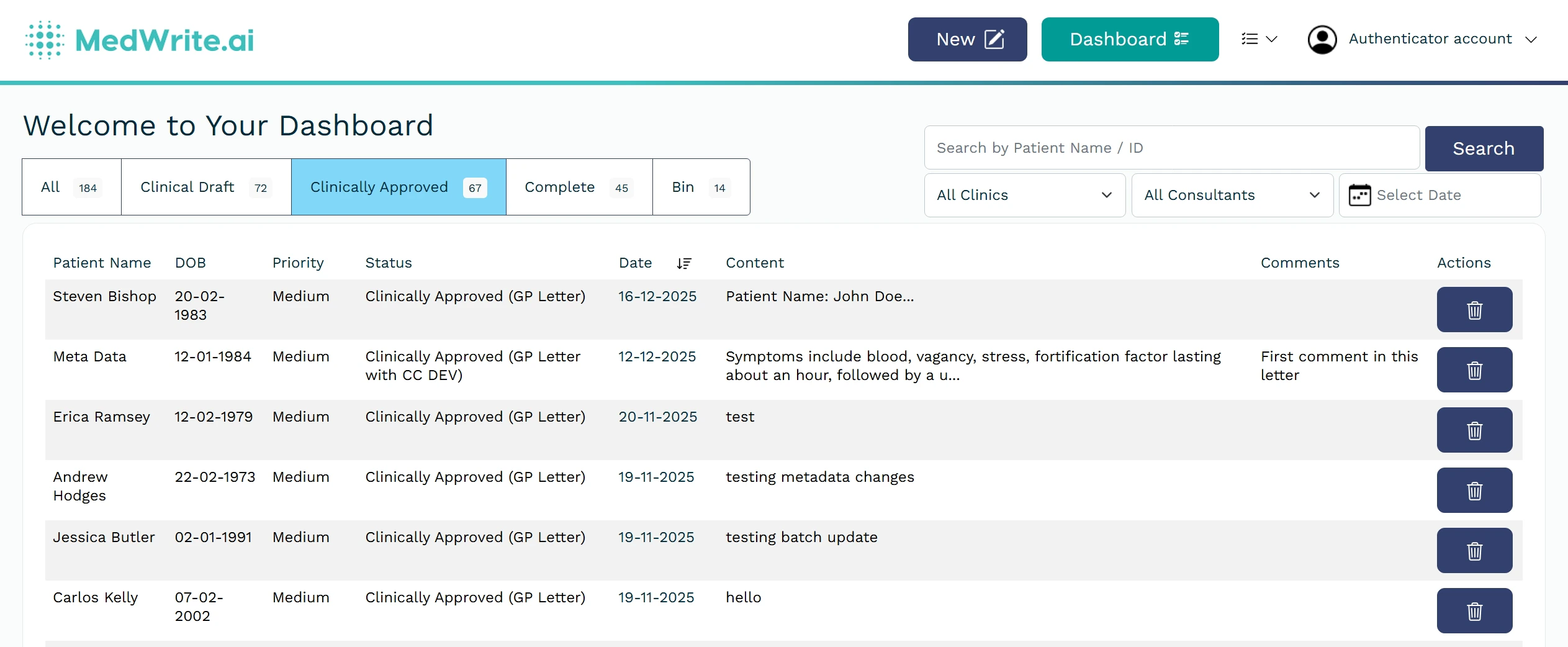
    Approved letters appear in a dedicated area on the dashboard. From there you can export them as PDF or Word or send them by email.

    <div style={{ display: 'flex', flexDirection: 'column', gap: '1.5rem' }}>
      <Frame hint="Open the Clinically approved tab on the dashboard to see your approved letters" caption="Clinically approved tab on the dashboard with approved letters listed.">
        <img src="https://mintcdn.com/medwriteai/XdgYt_1aTlKVlKXO/images/clinical-approve/letterApprovedDashboard.jpeg?fit=max&auto=format&n=XdgYt_1aTlKVlKXO&q=85&s=0ddf201c6fd7bf7b2327f77257eaa597" alt="Clinically approved tab on the dashboard with approved letters listed" style={{ borderRadius: '0.5rem', maxWidth: '100%' }} width="2526" height="1042" data-path="images/clinical-approve/letterApprovedDashboard.jpeg" />
      </Frame>
    </div>
  </Step>
</Steps>

## Next steps

<Columns cols={2}>
  <Card title="Mark as Complete" icon="check" href="/essentials/mark-as-complete">
    Mark a record or letter as complete when you have finished with it.
  </Card>

  <Card title="Send Email" icon="mailbox" href="/essentials/send-email">
    Send approved letters by email from the dashboard.
  </Card>
</Columns>