> ## Documentation Index
> Fetch the complete documentation index at: https://docs.medwrite.ai/llms.txt
> Use this file to discover all available pages before exploring further.

# Assign User Roles

> Assign roles to users in your organisation

Roles control what users can do in MedWrite (for example create records, approve letters, or manage organisation settings). Assign the right role so each user has the access they need.

<Steps>
  <Step title="Assign a role">
    In user management, you can viewuser's name, email role, and Groups.
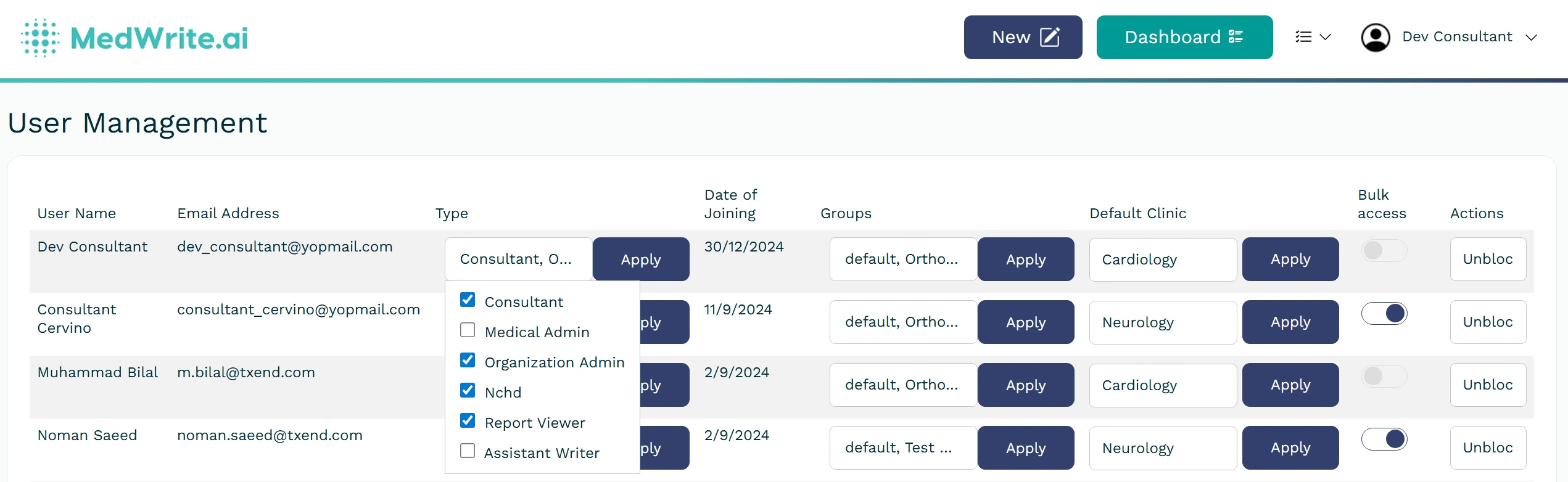
    <Frame caption="User role dropdown or role assignment screen.">
      <img src="https://mintcdn.com/medwriteai/R5Bs1ncwatpjoUpI/images/assign-userRole/userRoles.jpeg?fit=max&auto=format&n=R5Bs1ncwatpjoUpI&q=85&s=df81b90172af94dc8d908989fa990e45" alt="User role dropdown or role assignment screen" style={{ borderRadius: '0.5rem', maxWidth: '100%' }} width="2542" height="782" data-path="images/assign-userRole/userRoles.jpeg" />
    </Frame>
  </Step>

  <Step title="After assigning">
    The user's permissions update straight away. You can set the permissions for each role in Workflow management.
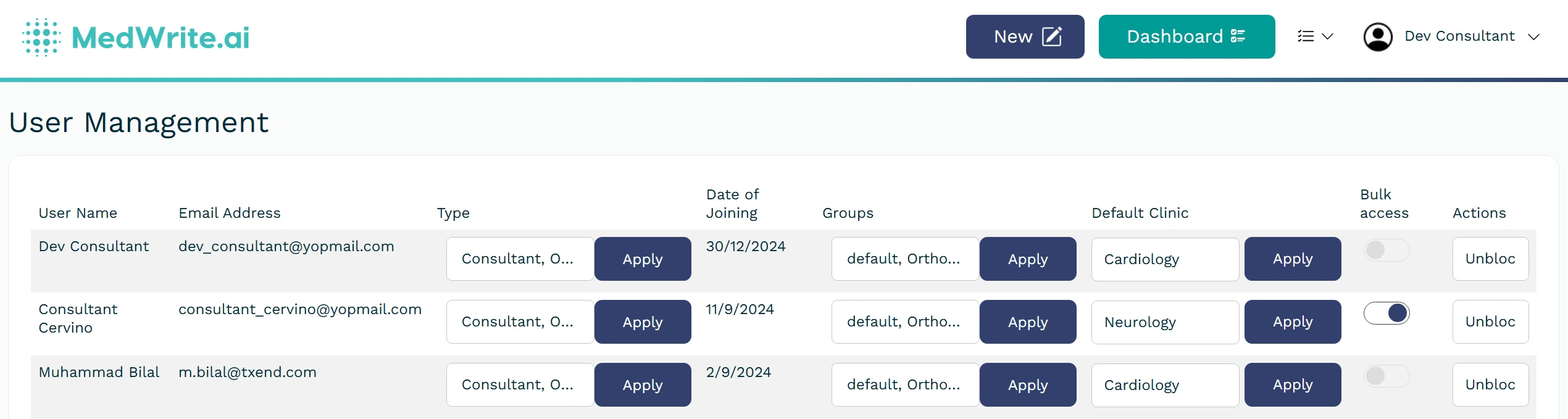
    <Frame caption="Role list or user with role shown.">
      <img src="https://mintcdn.com/medwriteai/R5Bs1ncwatpjoUpI/images/assign-userRole/userList.jpeg?fit=max&auto=format&n=R5Bs1ncwatpjoUpI&q=85&s=6b1a374ecc0b646a93377431600ab89d" alt="Role list or user with role shown" style={{ borderRadius: '0.5rem', maxWidth: '100%' }} width="2540" height="679" data-path="images/assign-userRole/userList.jpeg" />
    </Frame>
  </Step>
</Steps>

## Next steps

<Columns cols={2}>
  <Card title="Create Clinic" icon="building-circle-arrow-right" href="/essentials/create-clinic">
    Add a new clinic to your organisation.
  </Card>

  <Card title="Organization Management" icon="users-medical" href="/essentials/create-group">
    Create groups and manage organisation.
  </Card>
</Columns>
