> ## Documentation Index
> Fetch the complete documentation index at: https://docs.medwrite.ai/llms.txt
> Use this file to discover all available pages before exploring further.
# Add PDF Template
> Add a PDF template for letter or document output
Add a PDF template from **Template Management**. After you choose organisation, template type, and optional clinic, you design the HTML layout and select **variables** so the right **patient and letter details** are inserted **dynamically** into each exported PDF.
In the templates or documents area, click **Add New Template** to start adding a PDF template.

 Under **Clinic (optional)**, choose **Organisation template** or a specific clinic.
.jpeg?fit=max&auto=format&n=5wp1zTLvuLiTjDfk&q=85&s=859af6d32fcbdff7a26459cbea123872)
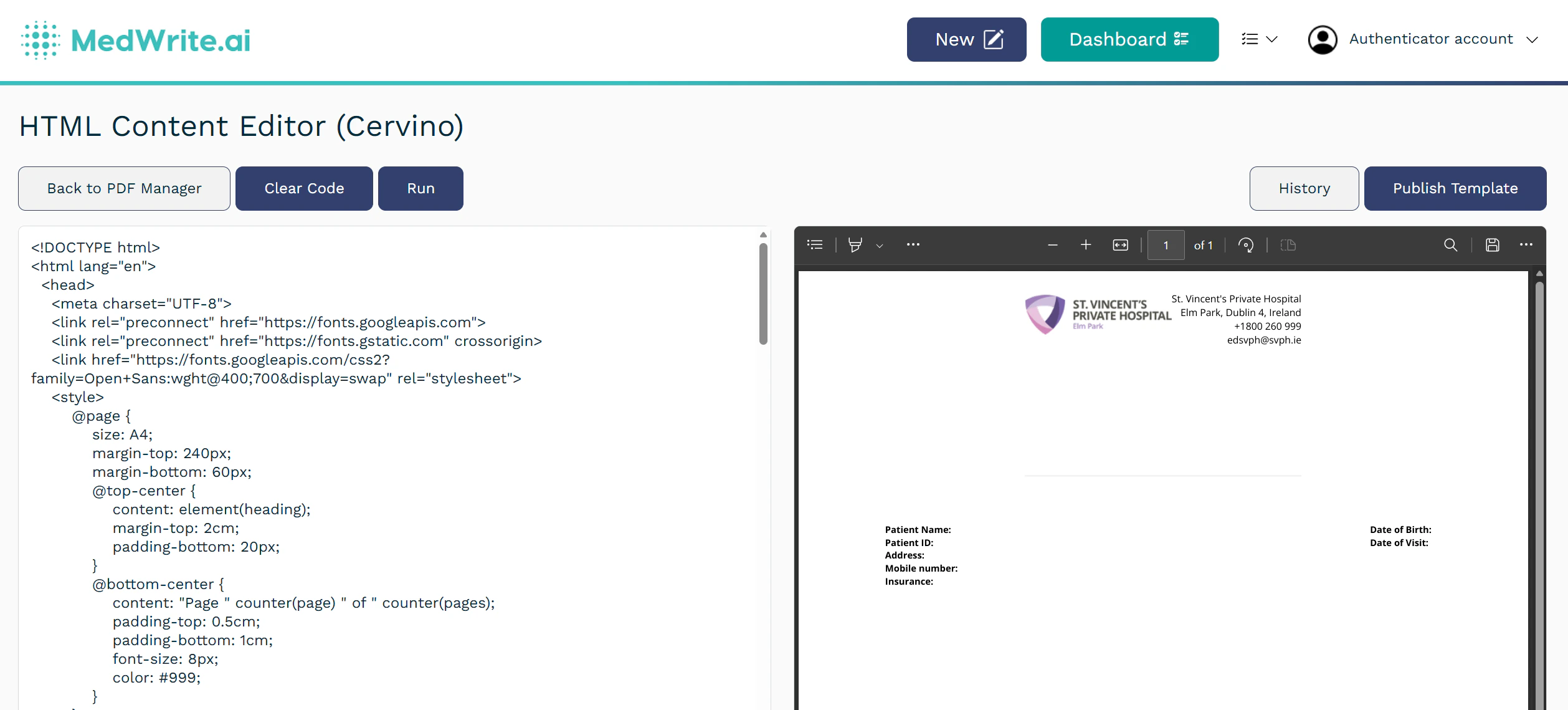
-1.jpeg?fit=max&auto=format&n=5wp1zTLvuLiTjDfk&q=85&s=f422b0249e02dd7e84bb8fcd454bfa1d) After you select organisation, template type, and optional clinic, the **HTML Content Editor** opens. Use the HTML to control **layout and styling** (headings, tables, branding). Add **placeholders** in the markup for any **dynamic** details you want in the final PDF (patient name, dates, letter text, and other fields). Open **Variables**, tick the **dynamic fields** you want MedWrite to merge for this template, and keep them aligned with your HTML. Use **Run** to preview (you can add sample **context data** for testing). When the design is correct, **Publish Template** to save it for live letters.
After you select organisation, template type, and optional clinic, the **HTML Content Editor** opens. Use the HTML to control **layout and styling** (headings, tables, branding). Add **placeholders** in the markup for any **dynamic** details you want in the final PDF (patient name, dates, letter text, and other fields). Open **Variables**, tick the **dynamic fields** you want MedWrite to merge for this template, and keep them aligned with your HTML. Use **Run** to preview (you can add sample **context data** for testing). When the design is correct, **Publish Template** to save it for live letters.
 ## Next steps
Create and manage letter and document templates.
Add a Word template for letter output.
## Next steps
Create and manage letter and document templates.
Add a Word template for letter output.