> ## Documentation Index
> Fetch the complete documentation index at: https://docs.medwrite.ai/llms.txt
> Use this file to discover all available pages before exploring further.

> Create a new AI Assistant workflow and get started straight away.

# AI Workflow Setup

The users with Assistant Writers role can access the AI Workflow setup screen where they create a new assistant from scratch.

<Steps>
  <Step title="Open the Setup page">
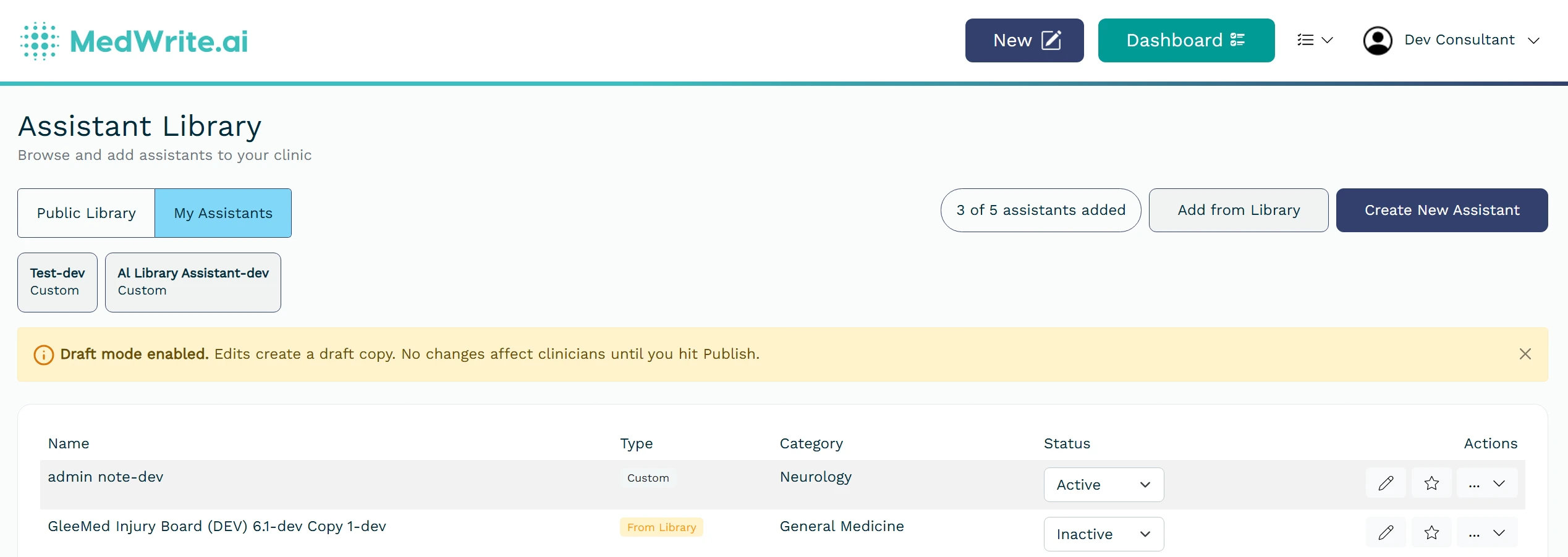
    Open **Assistant Library** from the Assistants menu, go to **My Assistants**, then click **Create New Assistant** to open AI Workflow Setup.”
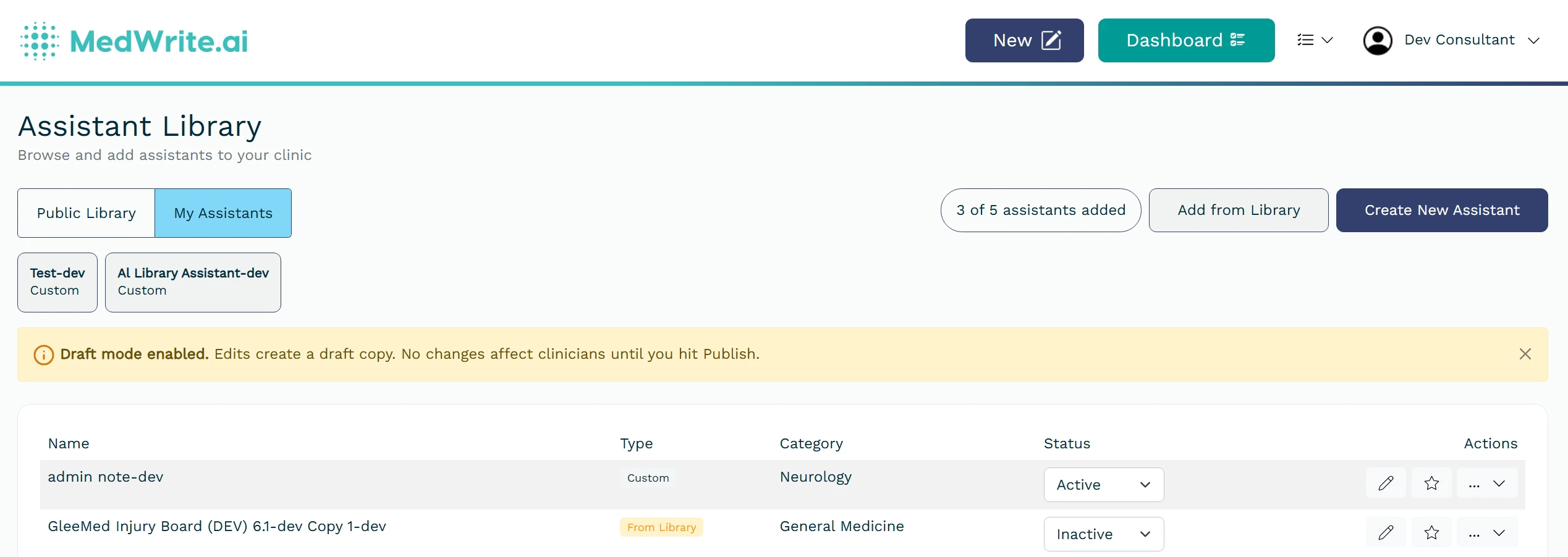
    <Frame caption="Assistant detail or edit screen.">
      <img alt="Assistant detail or edit screen" style={{ borderRadius: '0.5rem', maxWidth: '100%' }} lightAlt="Assistant detail or edit screen" darkAlt="Assistant detail or edit screen" src="https://mintcdn.com/medwriteai/JmYsjy4s1en76Y-r/images/Screenshot_6-5-2026_123720_dev.medwrite.ai.png?fit=max&auto=format&n=JmYsjy4s1en76Y-r&q=85&s=f5fb5f8d4558300563312e8024714236" className="dark:hidden" width="2537" height="902" data-path="images/Screenshot_6-5-2026_123720_dev.medwrite.ai.png" />

      <img alt="Assistant detail or edit screen" style={{ borderRadius: '0.5rem', maxWidth: '100%' }} lightAlt="Assistant detail or edit screen" darkAlt="Assistant detail or edit screen" src="https://mintcdn.com/medwriteai/JmYsjy4s1en76Y-r/images/Screenshot_6-5-2026_123720_dev.medwrite.ai-1.png?fit=max&auto=format&n=JmYsjy4s1en76Y-r&q=85&s=b03e10fe36c862e2d92ae1569ae54a74" className="hidden dark:block" width="2537" height="902" data-path="images/Screenshot_6-5-2026_123720_dev.medwrite.ai-1.png" />
    </Frame>
  </Step>

  <Step title="Write your Instructions">
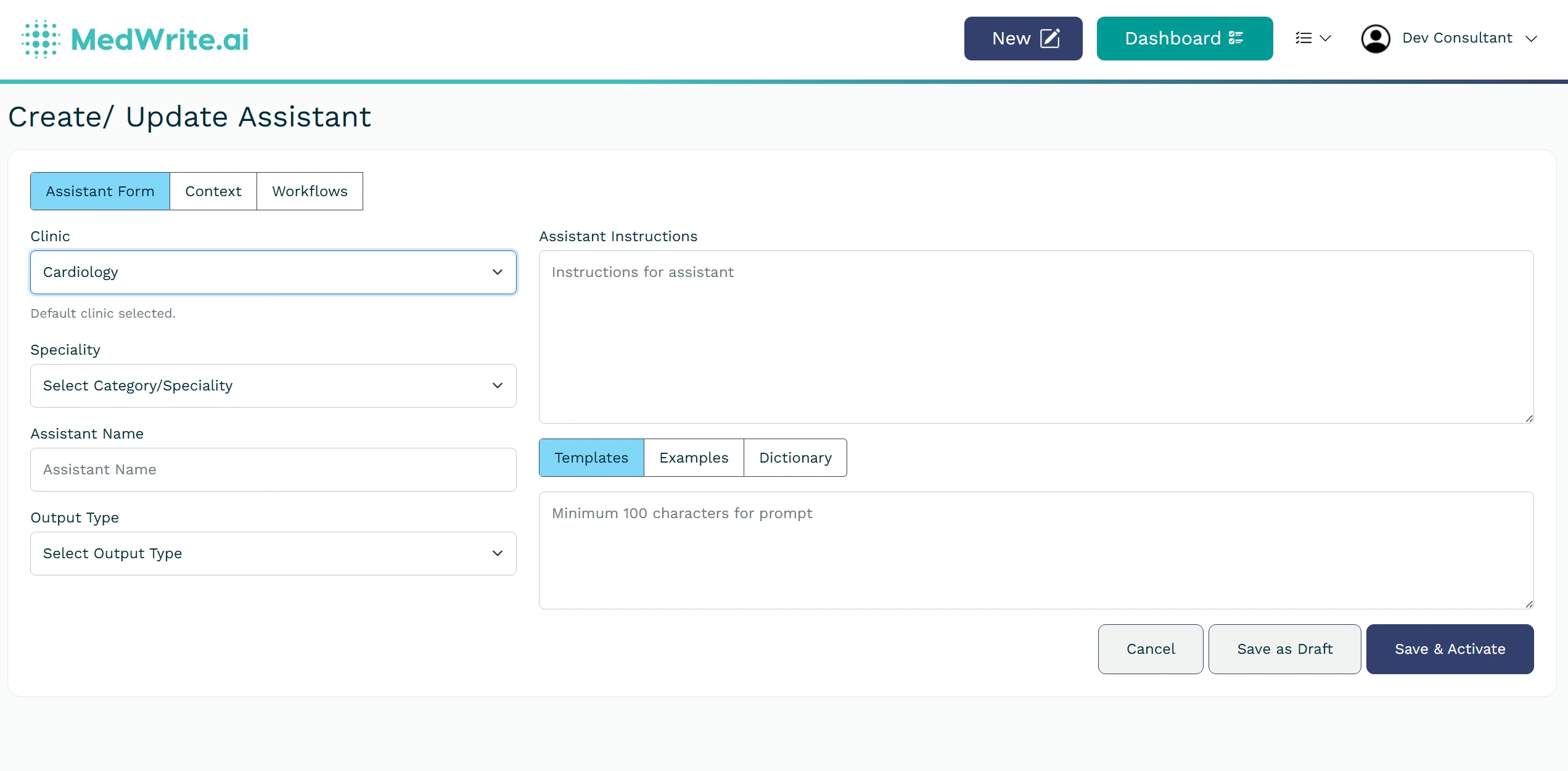
    In **Assistant Form**, complete the required fields (for example **Clinic, Speciality, Assistant Name, Output Type, and Instructions**) and save the assistant. Then open the **Context** tab to upload a file (optional) for context search. Finally, open the **Workflows** tab and assign the workflow(s) for this assistant.
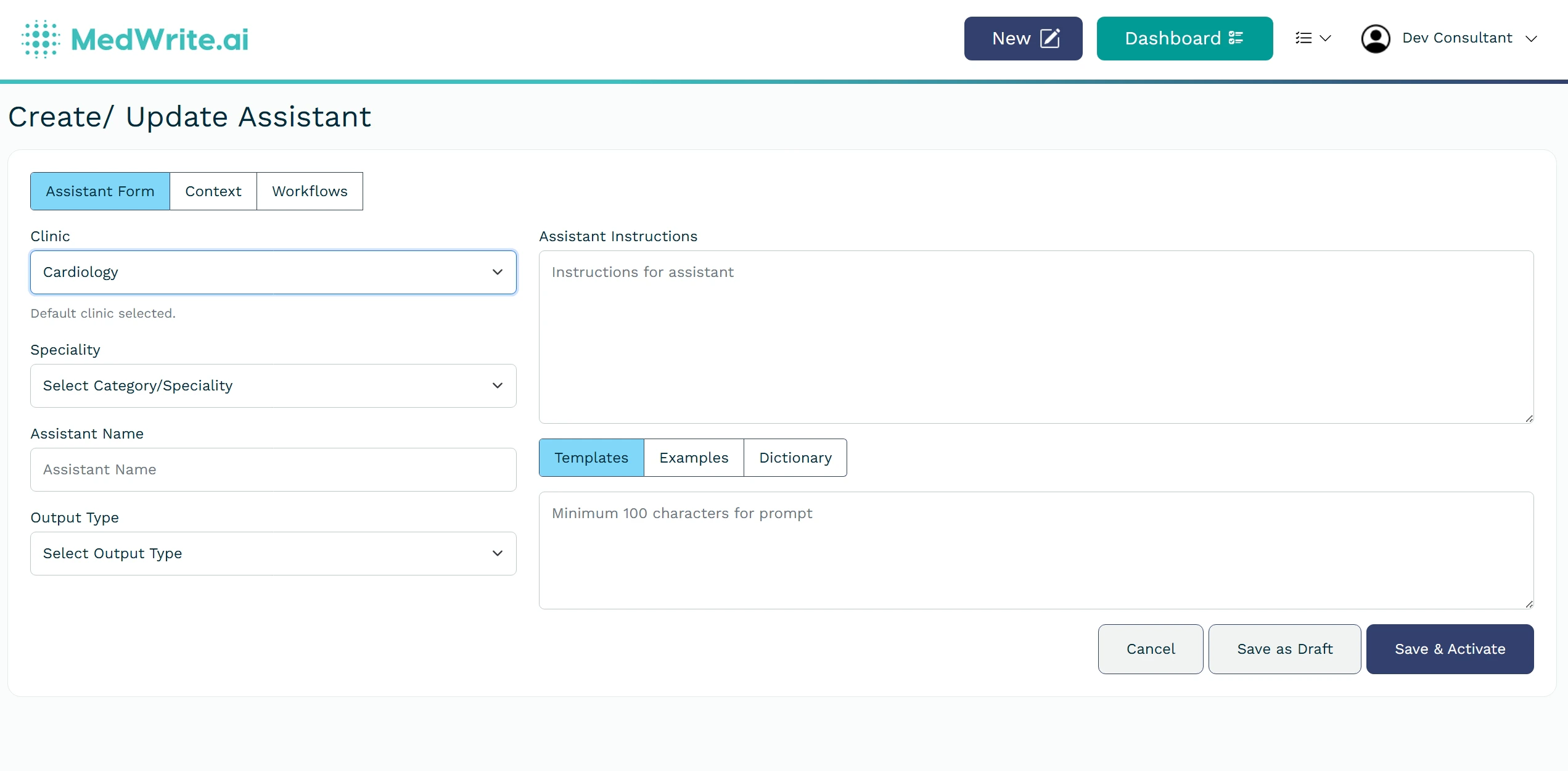
    <Frame caption="Save or update confirmation.">
      <img alt="Save or update confirmation" style={{ borderRadius: '0.5rem', maxWidth: '100%' }} lightAlt="Save or update confirmation" darkAlt="Save or update confirmation" src="https://mintcdn.com/medwriteai/JmYsjy4s1en76Y-r/images/Screenshot_6-5-2026_13344_dev.medwrite.ai.jpeg?fit=max&auto=format&n=JmYsjy4s1en76Y-r&q=85&s=5271578388578cd51757820b0dd5c4db" className="dark:hidden" width="2543" height="1250" data-path="images/Screenshot_6-5-2026_13344_dev.medwrite.ai.jpeg" />

      <img alt="Save or update confirmation" style={{ borderRadius: '0.5rem', maxWidth: '100%' }} lightAlt="Save or update confirmation" darkAlt="Save or update confirmation" src="https://mintcdn.com/medwriteai/JmYsjy4s1en76Y-r/images/Screenshot_6-5-2026_13344_dev.medwrite.ai-1.jpeg?fit=max&auto=format&n=JmYsjy4s1en76Y-r&q=85&s=4b7fb4e5f8707630e72c383cb144a2aa" className="hidden dark:block" width="2543" height="1250" data-path="images/Screenshot_6-5-2026_13344_dev.medwrite.ai-1.jpeg" />
    </Frame>
  </Step>
</Steps>

## Next steps

<Columns cols={2}>
  <Card title="Manage Assistants" icon="user-robot-xmarks" href="/essentials/manage-assistants">
    View and manage your AI assistants.
  </Card>

  <Card title="Create Record" icon="user-robot-xmarks" href="/essentials/create-record">
    Create New Record.
  </Card>
</Columns>
