> ## Documentation Index
> Fetch the complete documentation index at: https://docs.medwrite.ai/llms.txt
> Use this file to discover all available pages before exploring further.
# Dashboard Filters
> Filter the dashboard by clinic or consultant
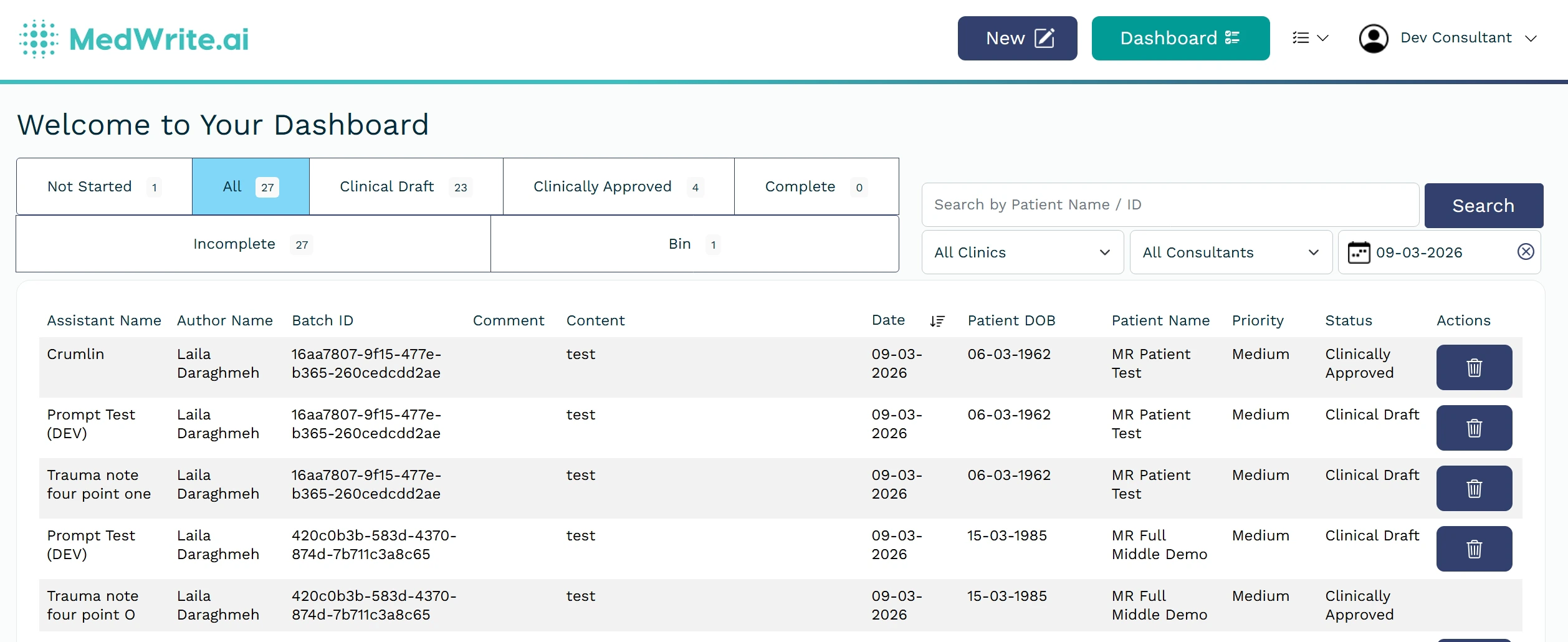
Filter the dashboard so you only see records or letters for a specific clinic or consultant. This helps when you manage multiple clinics or work in a team.
Filters for **clinic** and **consultant** are usually at the top of the dashboard or list view. Use the dropdowns or selectors to pick a clinic and optionally a consultant.
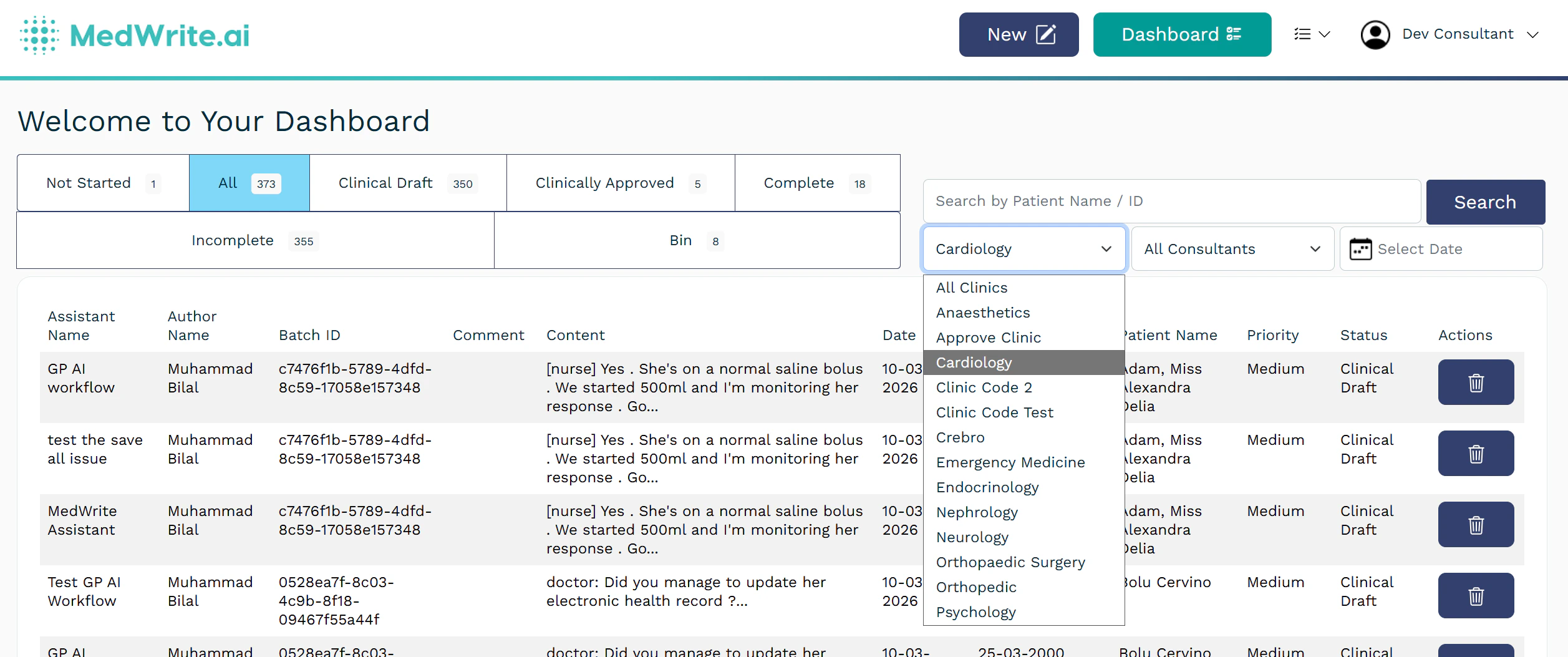
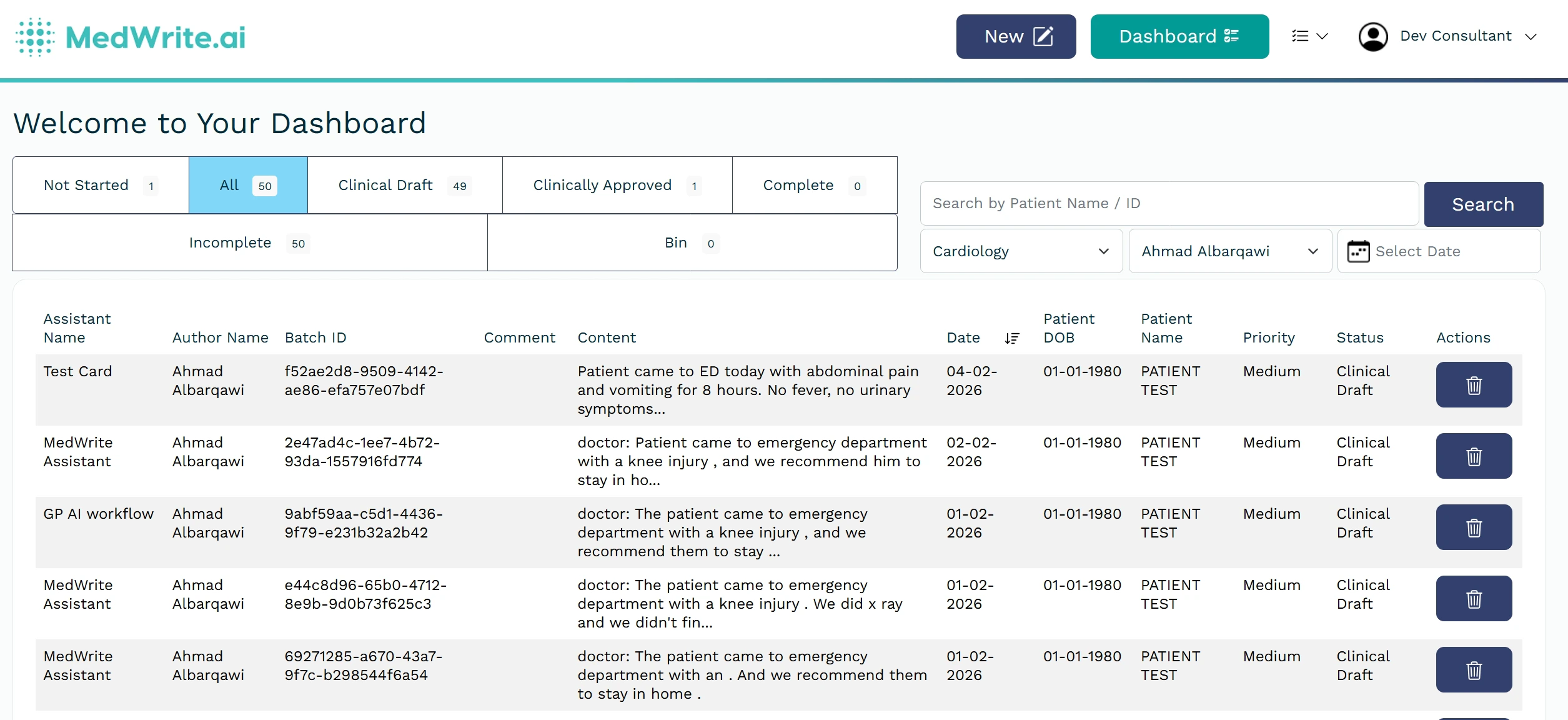
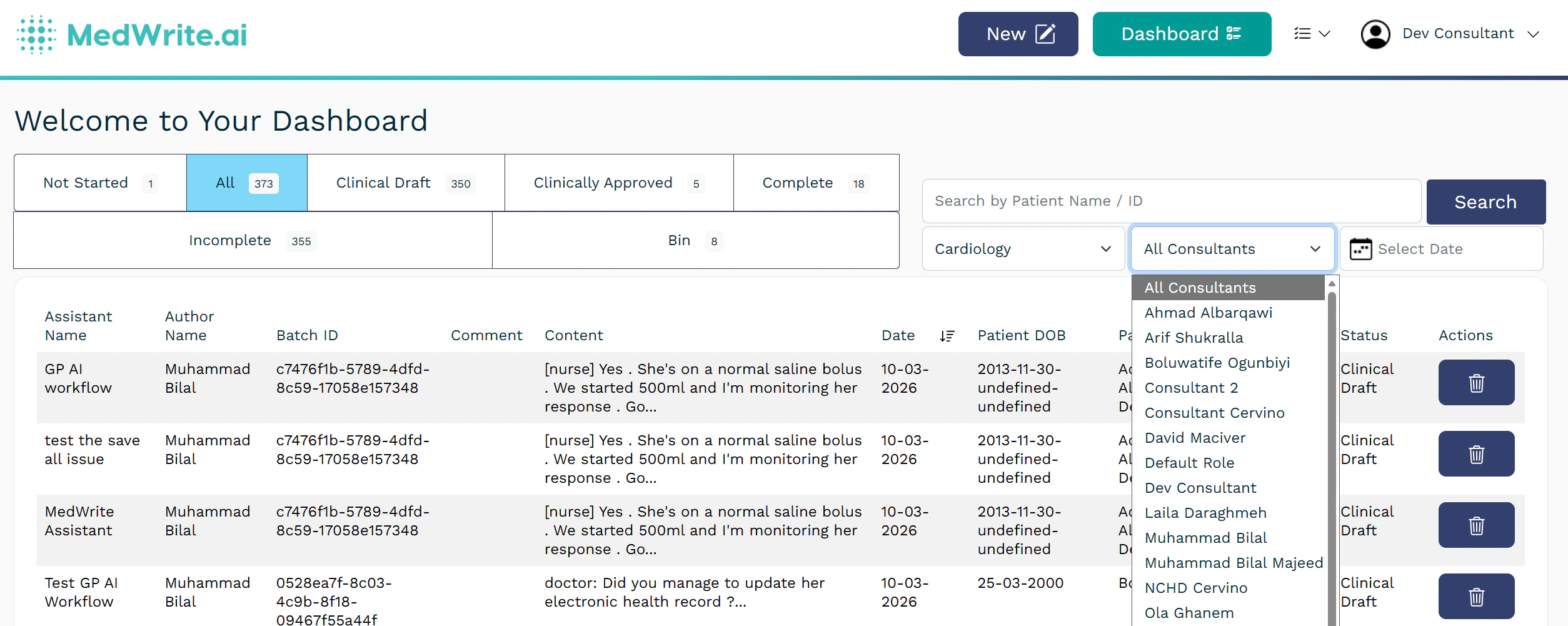 The list updates to show only records or letters that match the selected clinic and consultant. Clear the filters to see everything again.
 ## Date Filters
Use the date filter to show only records or letters within a certain period. This helps when you need to find something from a specific day or week.
The date filter is usually near the top of the dashboard or list. You can pick a date range (from and to) or use presets such as today, this week, or this month.
## Date Filters
Use the date filter to show only records or letters within a certain period. This helps when you need to find something from a specific day or week.
The date filter is usually near the top of the dashboard or list. You can pick a date range (from and to) or use presets such as today, this week, or this month.
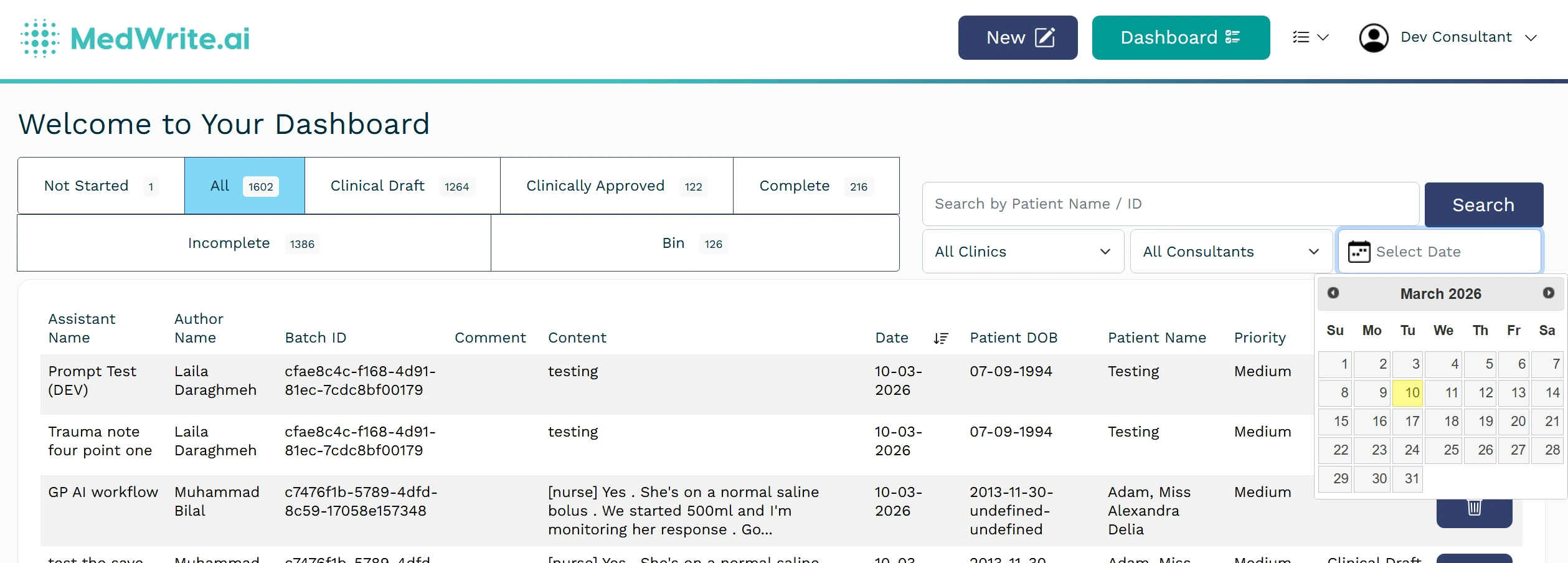 The list shows only items within the selected range. Clear or change the date to see a different period.
 ## Next steps
Switch between workflow statuses.
Filter by clinic or consultant.
## Next steps
Switch between in progress, approved, and other statuses.
Filter records or letters by date range.
## Next steps
Switch between workflow statuses.
Filter by clinic or consultant.
## Next steps
Switch between in progress, approved, and other statuses.
Filter records or letters by date range.